For the complete documentation index, see llms.txt. This page is also available as Markdown.

How to send an order confirmation email with a discount code in Shopify?

Are you wondering what to do to make an order confirmation encouraging repeat purchases from your Shopify shop? Here is a guide on how to use Discounteo with Shopify order confirmation.

Firstly open your Shopify admin panel > Apps > Discounteo. Click the Add automation button. Select Shopify as your Email Service Provider and the campaign type - Follow up on purchases.

Discounteo follow-up purchase automation setup with an animated preview.
Add Discounteo follow-up purchase automation

In the next step fill out the form of your automation details. Here is a useful guide on how to configure discount.

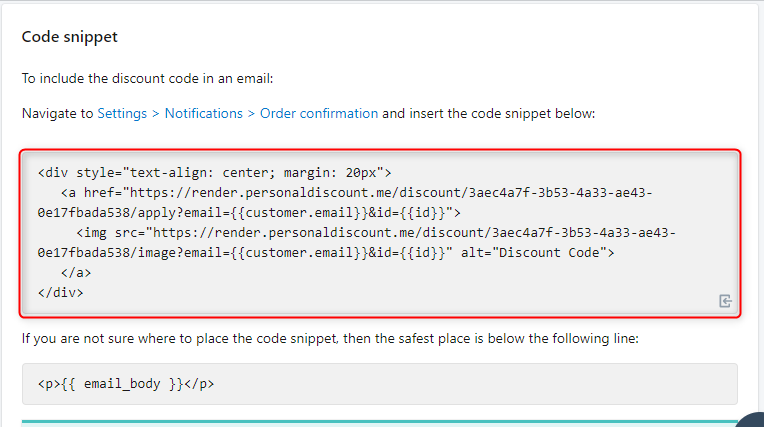
Now save your automation and copy the code snippet to your clipboard.

Copy code snippet from Discounteo, with the relevant code section highlighted
Copy the code snippet from Discounteo

Navigate to Settings > Notifications > Order confirmation and insert your code snippet into your confirmation email template. If you are not sure where to place the code snippet, then the safest place is below the following line:

You can paste it for example here:

Paste the code snippet into order confirmation template annotated
Paste the Discounteo code snippet into the Shopify order confirmation template

Don't forget to save changes to your template.

Save Shopify order confirmation template annotated
Save the Shopify order confirmation template with the Discounteo code snippet

When your customers place an order, they will receive a discount code for their next purchases, included in an order confirmation email.

Shopify order confirmation email featuring a discount code generated by Discounteo

Last updated