For the complete documentation index, see llms.txt. This page is also available as Markdown.

How to welcome new subscribers with a discount code using MailerLite

If you're wondering how to increase your subscribers, one of the best solutions is to reward them with a discount code for their next purchase.

In this article, we will guide you on how to create a welcome campaign in MailerLite.

Firstly, navigate to your Shopify dashboard > Apps > Discounteo. Next, click the Add automation button, select MailerLite as your email service provider, and Welcome new subscribers as a campaign type.

Create a Discounteo automation for a Shopify store with MailerLite
Discounteo automation for MailerLite

Then set up your automation details. For more information, take a look at the article on how to configure discount.

Save your automation and copy the code snippet to the clipboard.

Copy the Discounteo code snippet to the clipboard
Copy the code snippet to the clipboard

Now you can switch over to your MailerLite admin panel. Hit Automation > Create workflow.

Create a MailerLite workflow
MailerLite: Create a workflow

Select the When subscriber joins a group trigger and the group where your Shopify customers are subscribed to.

MailerLite: Set “Subscriber joins a group” as the automation trigger
Set the workflow trigger in MailerLite

Now add the action that will be performed when a subscriber joins the group. In this case, it will be to send an email.

MailerLite: Add a triggered action to your automation
MailterLite: add an email action

Let's prepare our email template. We can use the drag and drop editor for this.

How to select the drag-and-drop editor for creating an email template
Drag-and-drop email template editor

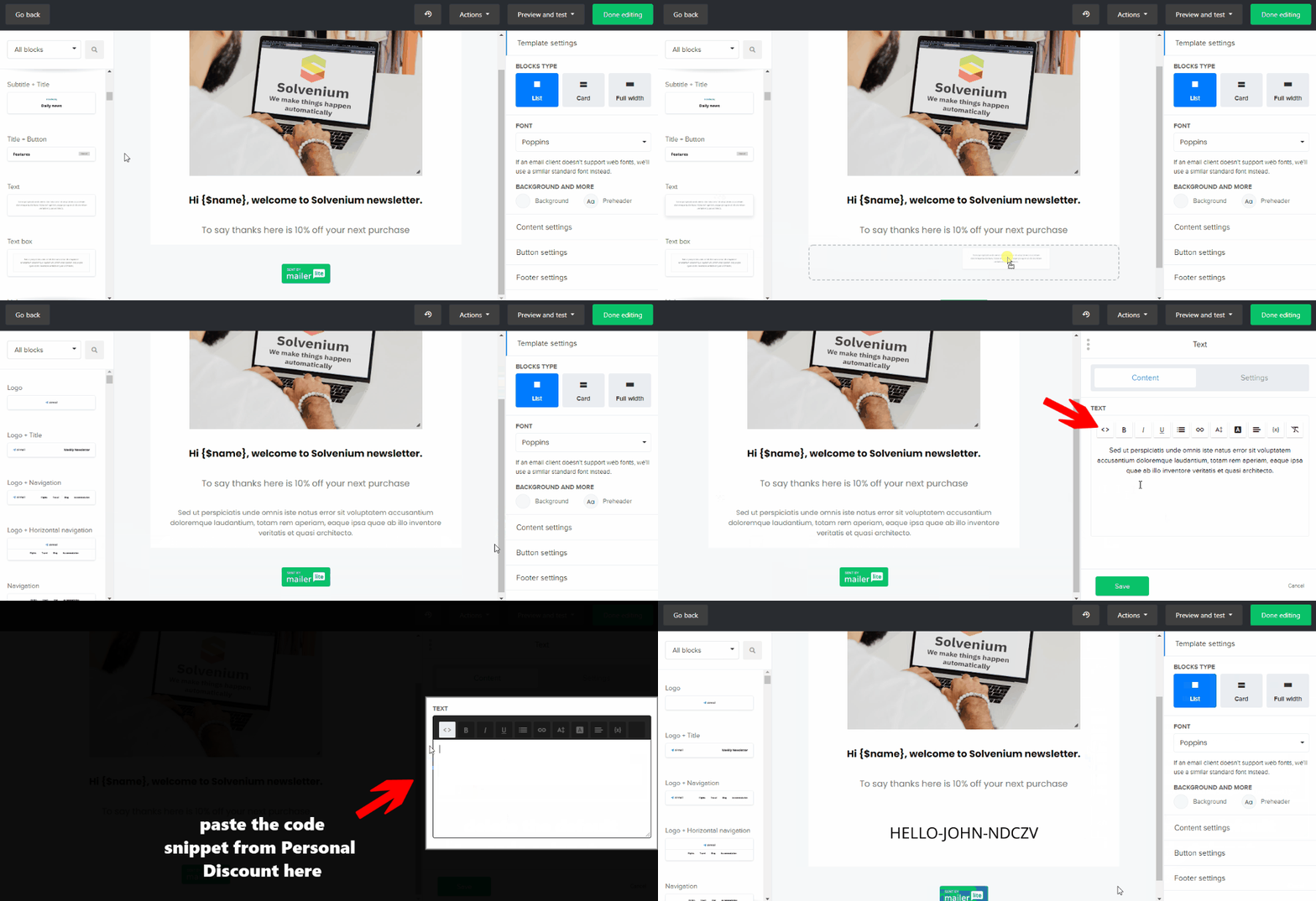
Now design your message template. Add the code snippet from Discounteo to your automation. Drag and drop a text element to your message project. Next, edit this one. Switch over to the HTML view. Delete the existing code snippet and paste the one from Discounteo. In the end, Save changes. When your template is ready, hit Done editing.

Paste the HTML code snippet into a MailerLite email template
Paste the code snippet into the message template

When your automation is ready, it's time to activate it.

Activate a MailerLite welcome workflow
Activate the MailerLite welcome automation

From now, when someone subscribes to your newsletter, they will receive a welcome email with a discount code for their next purchase.

Welcome message with a discount code using MailerLite and Discounteo for Shopify

Last updated