For the complete documentation index, see llms.txt. This page is also available as Markdown.

How to create Follow up on purchases campaign with MailerLite

One of the best ways to encourage a customer to continue shopping in your store in the future is to give them a discount code.

In this article, we will show how to set up Follow up on purchases campaign with MailerLite and Discounteo.

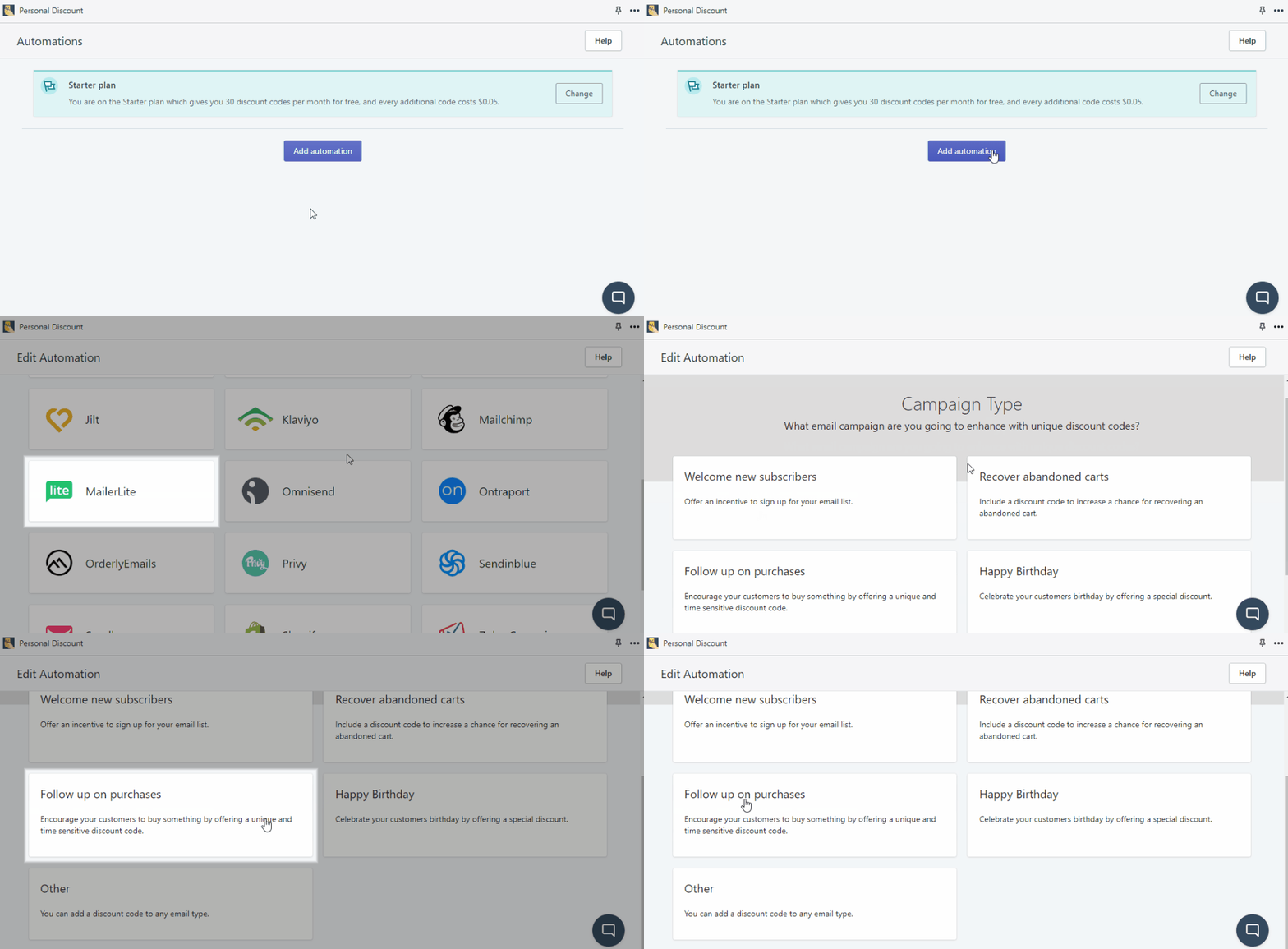
Navigate to your Shopify dashboard > Apps > Discounteo. Select MailerLite as your email service provider and Follow up on purchases as the campaign type.

Add a Personal Discount automation for a follow-up-on-purchases campaign with MailerLite
Add Discounteo to a MailerLite automation
Next, specify your automation details. Set the discount pattern, value, expiration date, etc. Take a look at the article on how to configure discount to find more information.

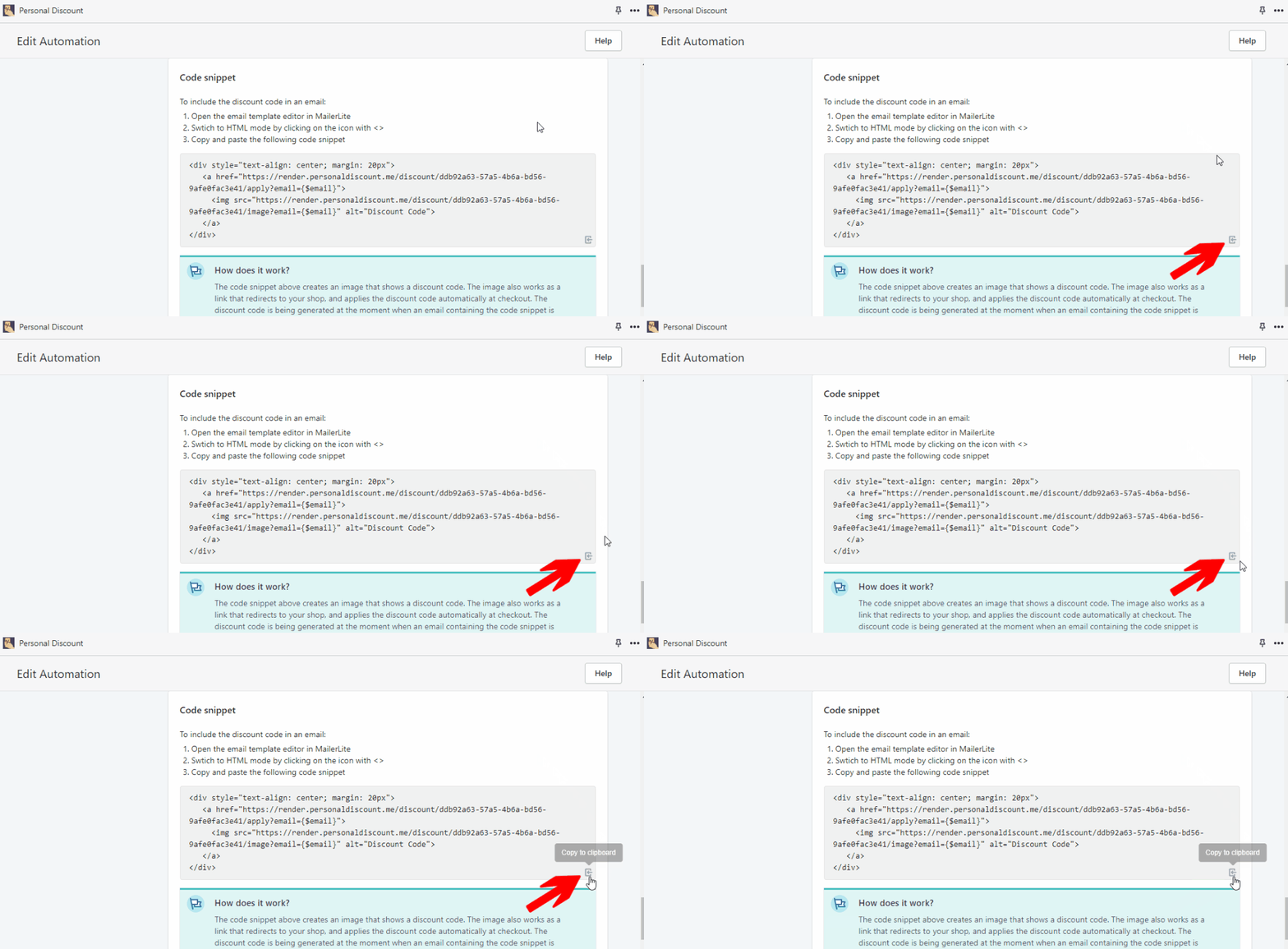
Save your automation and copy the code snippet from the bottom of the page to the clipboard.

Copy the Personal Discount automation code snippet
Copy the Discounteo code snippet

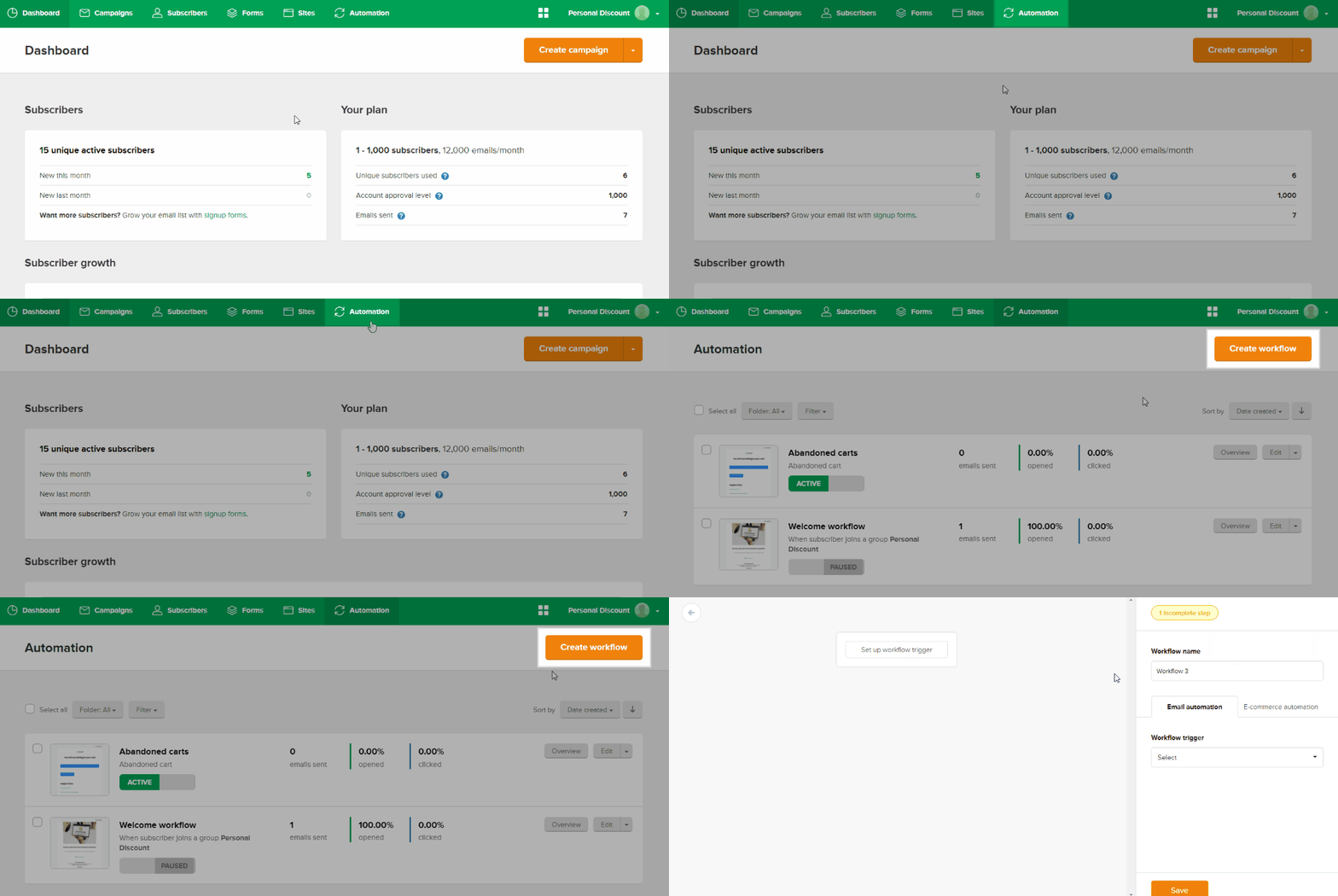
Switch over to your MailerLite dashboard. Go to the Automation section and click Create workflow.

Create a MailerLite workflow

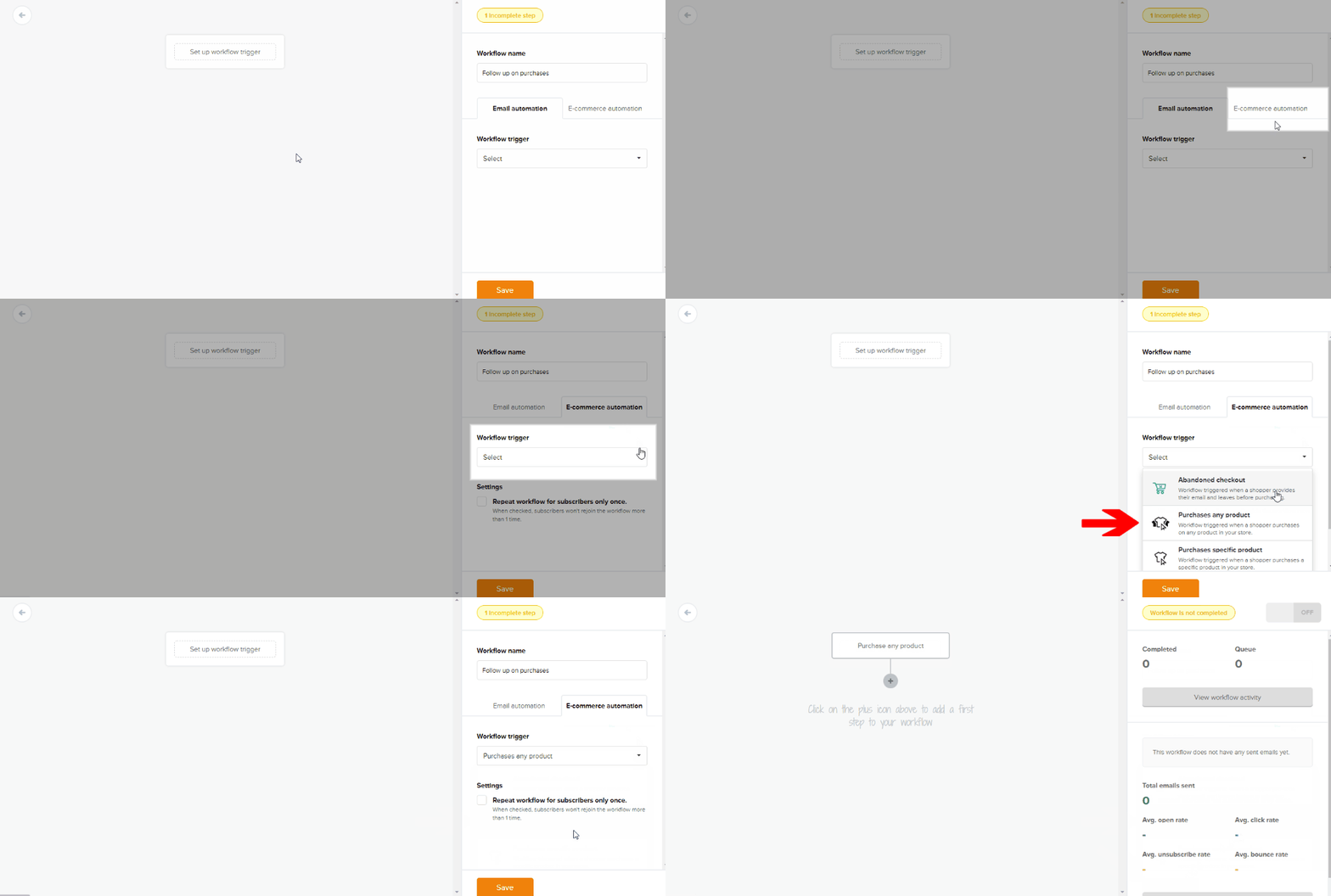
Set up the event that will trigger the automation. Open the E-commerce automation section, drop down the Workflow trigger menu and select Purchases any product. Then hit Save.

Set "Purchases any product" as the trigger in MailerLite
Set the automation trigger

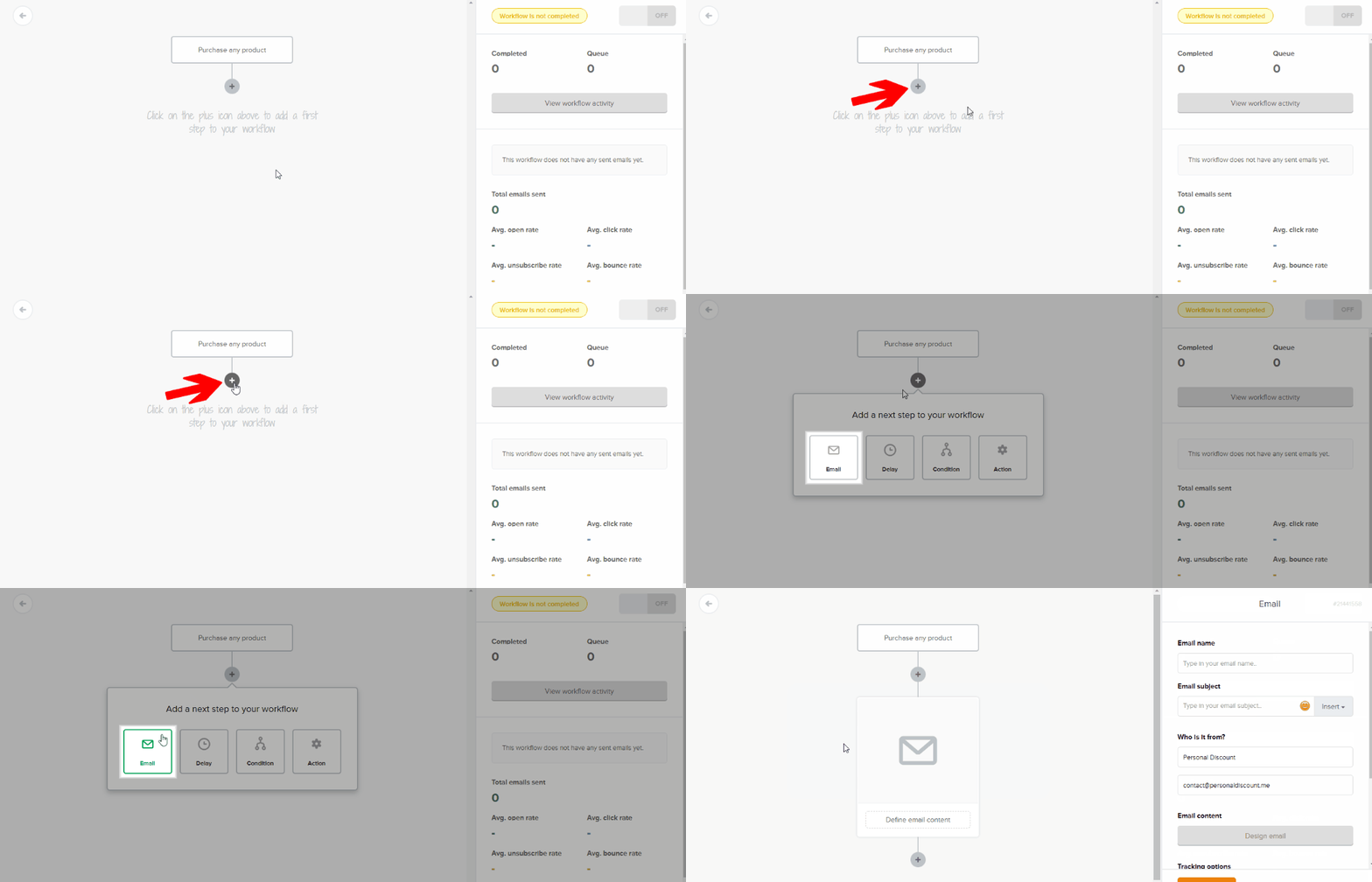
Now add the action that will be performed when a customer enters this automation. We would like to send an email.

Add email sending to your MailerLite automation
Add email sending to your automation

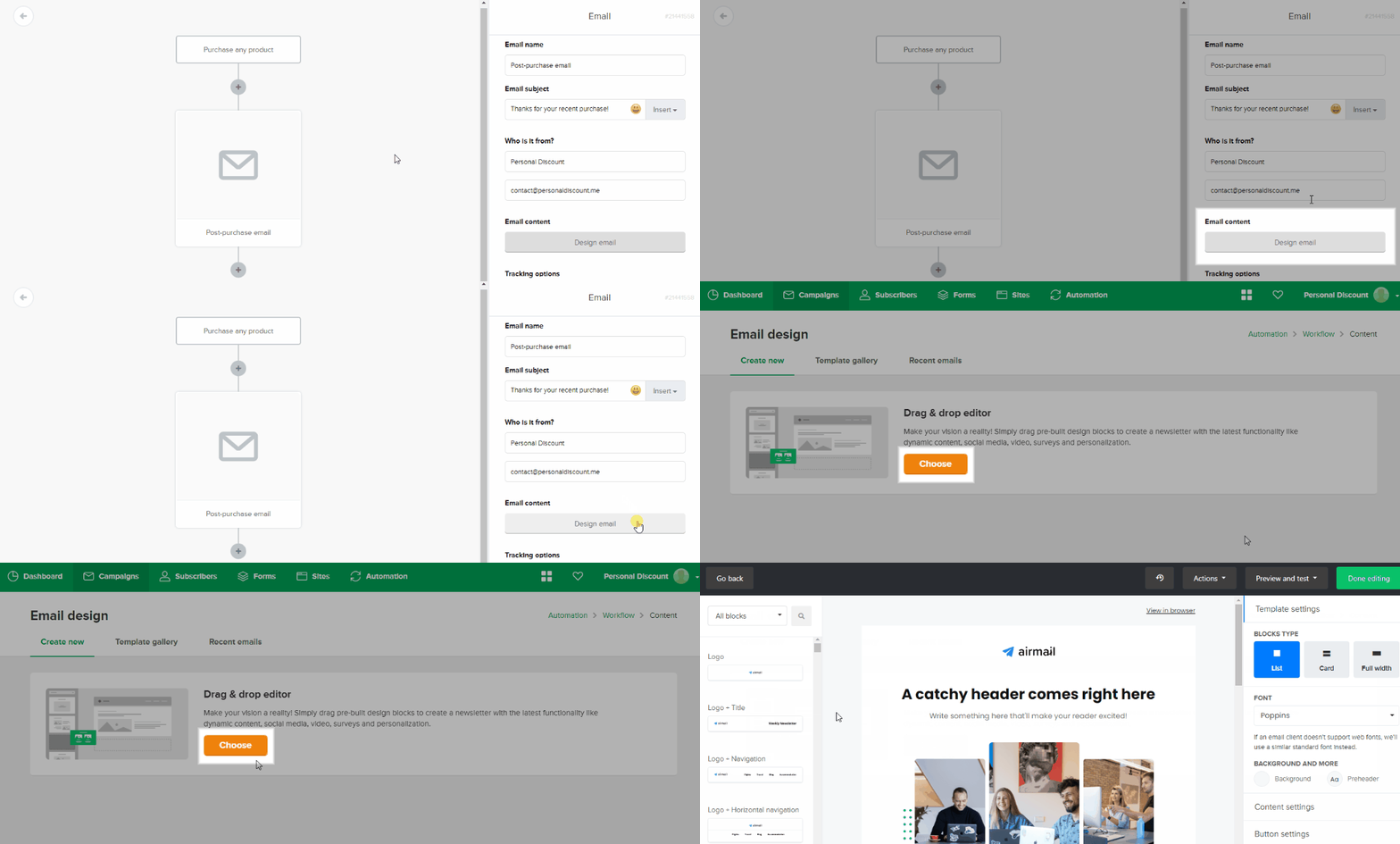
Next, design your message. We will use the drag and drop editor.

MailerLite email editor with drag-and-drop design tools for creating email campaigns
Choose the drag-and-drop editor to design your email
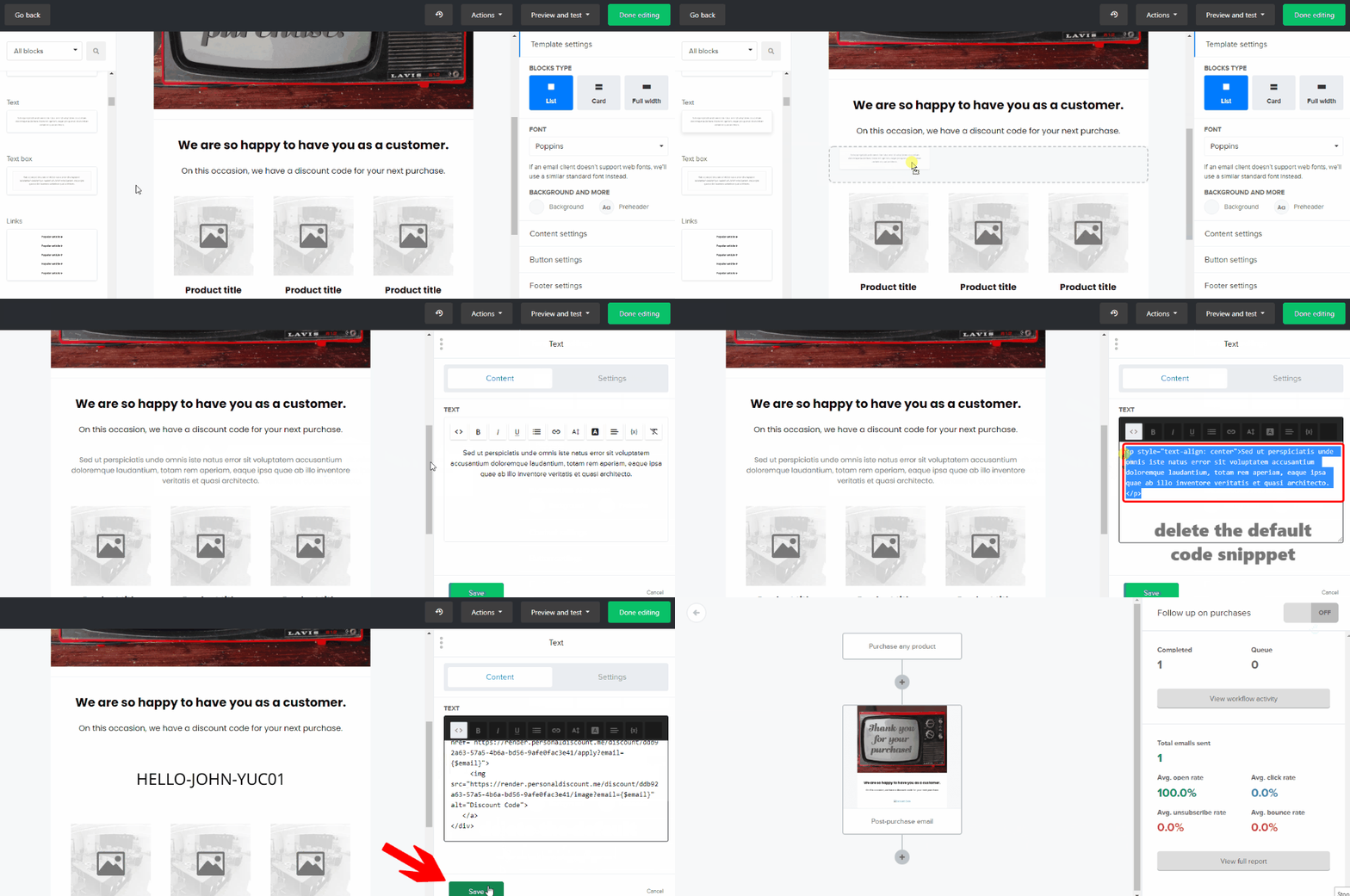
Drag and drop a text element into your template and Edit it. Switch over to the HTML view. Delete the default code snippet and paste the one from Discounteo. Then Save the element and entire template by clicking the Done editing button.

Paste HTML code snippet into a MailerLite email template
Paste the code snippet into your MailerLite email template
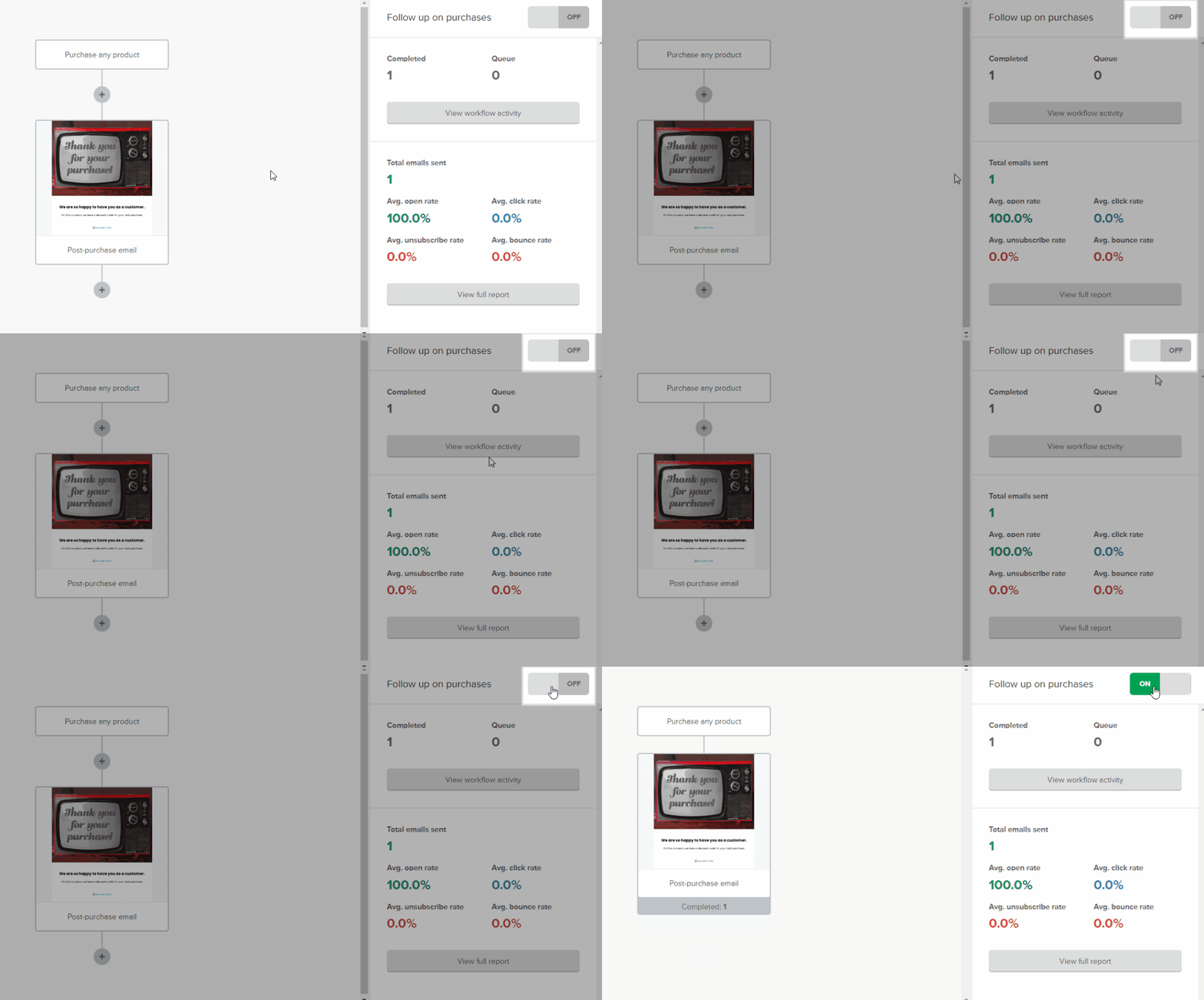
In the end, switch on your automation.

Enable a MailerLite automation to start sending emails automatically
Switch on the MailerLite automation

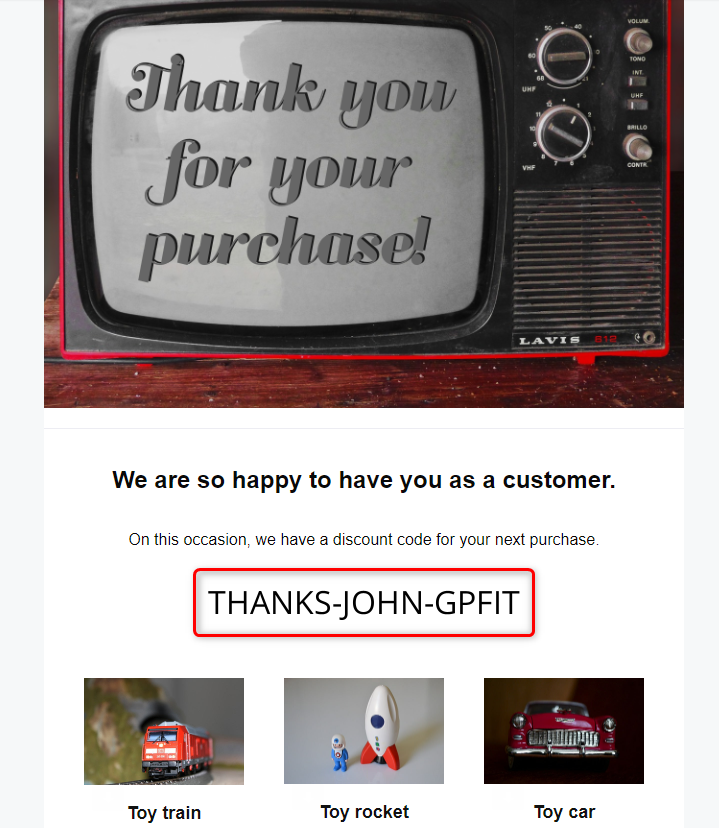
From now, when a customer buys any product in your store, will get an email with a unique discount code.

MailerLite automated email with a unique Discounteo discount code
MailerLite automated email with a Discounteo discount code for Shopify

Last updated