> For the complete documentation index, see [llms.txt](https://docs.personaldiscount.io/llms.txt). Markdown versions of documentation pages are available by appending `.md` to page URLs; this page is available as [Markdown](https://docs.personaldiscount.io/discounteo-for-shopify/integrate-discounteo-with-your-email-service-provider/mailchimp/how-to-set-up-an-automated-welcome-email-in-mailchimp.md).

# How to set up an automated welcome email in Mailchimp

Follow a step by step guide on how to set up the automated welcome email in Mailchimp and include a unique discount code from Discounteo.

Discounteo creates unique coupon codes for your email subscribers. However, to send out the discount codes you'll need to set up an automated welcome email in Mailchimp.&#x20;

**Discounteo Settings**

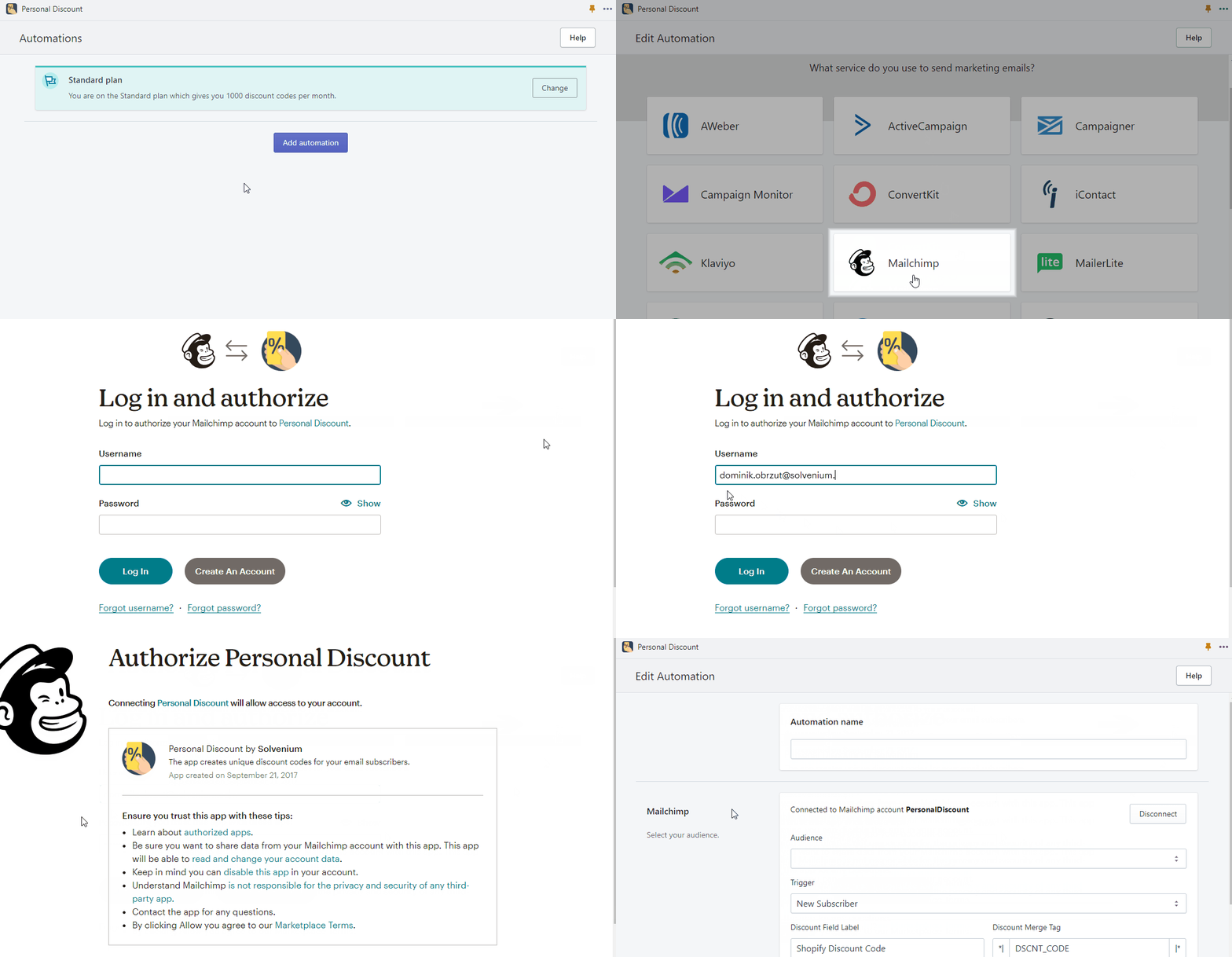
Navigate to Discounteo. Click on **Add automation** and connect the app with your Mailchimp account if it has not already been connected.

<figure><img src="https://3731721370-files.gitbook.io/~/files/v0/b/gitbook-x-prod.appspot.com/o/spaces%2F-LZdVZovthV0SPlgxS6Y%2Fuploads%2FgE1xQHQZXbkEdYw9gmAf%2Fpersonal-discount-create-automation-and-connect-with-mailchimp-animated.gif?alt=media&amp;token=38f1051c-247a-4e25-b060-02f1f1fb3ae4" alt="Discounteo: Create a new automation and connect it to a Mailchimp account"><figcaption><p>Create a new Discounteo automation and connect it to your Mailchimp account</p></figcaption></figure>

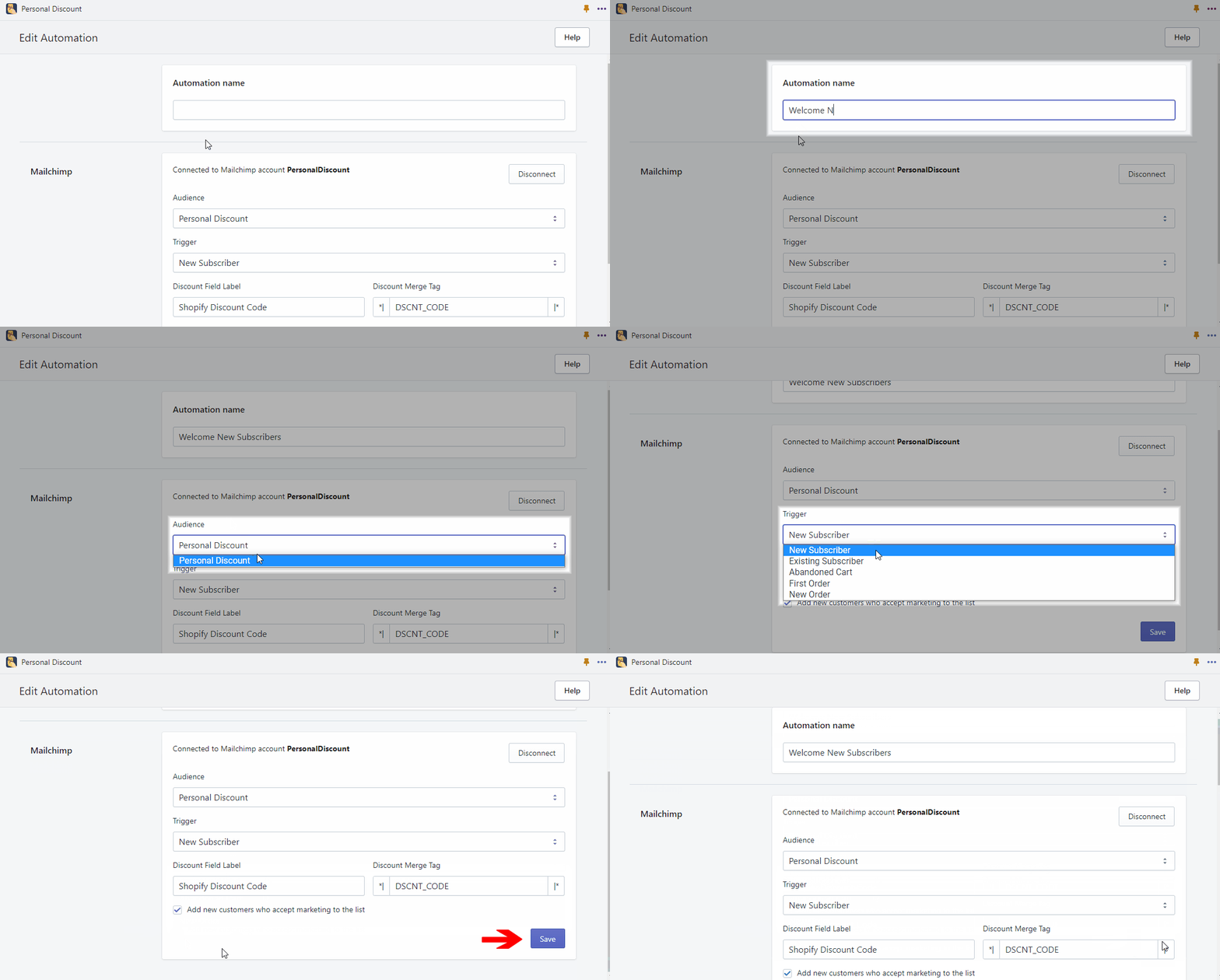
In the next step, provide the automation name and select the audience. Then pick the **New Subscriber** trigger. You can also decide whether to add new customers who accept marketing (for example at the Shopify checkout) to the Mailchimp list.

<figure><img src="https://3731721370-files.gitbook.io/~/files/v0/b/gitbook-x-prod.appspot.com/o/spaces%2F-LZdVZovthV0SPlgxS6Y%2Fuploads%2FVzXBNjorH4BmAMo5BGXG%2Fpersonal-discount-set-welcome-new-subscribers-automation-for-mailchimp.gif?alt=media&amp;token=0ea6bf0f-fb74-4b36-b220-010f9c9701a5" alt="Discounteo settings for a Mailchimp welcome automation"><figcaption><p>Discounteo settings for a welcome automation with Mailchimp</p></figcaption></figure>

Now you can set up details of your automation such as a discount value, usage limit, or expiration date. Learn more from [this article on how to configure your discount](/discounteo-for-shopify/configure-discount.md).

#### Edit an existing welcome email automation <a href="#edit-existing-welcome-email" id="edit-existing-welcome-email"></a>

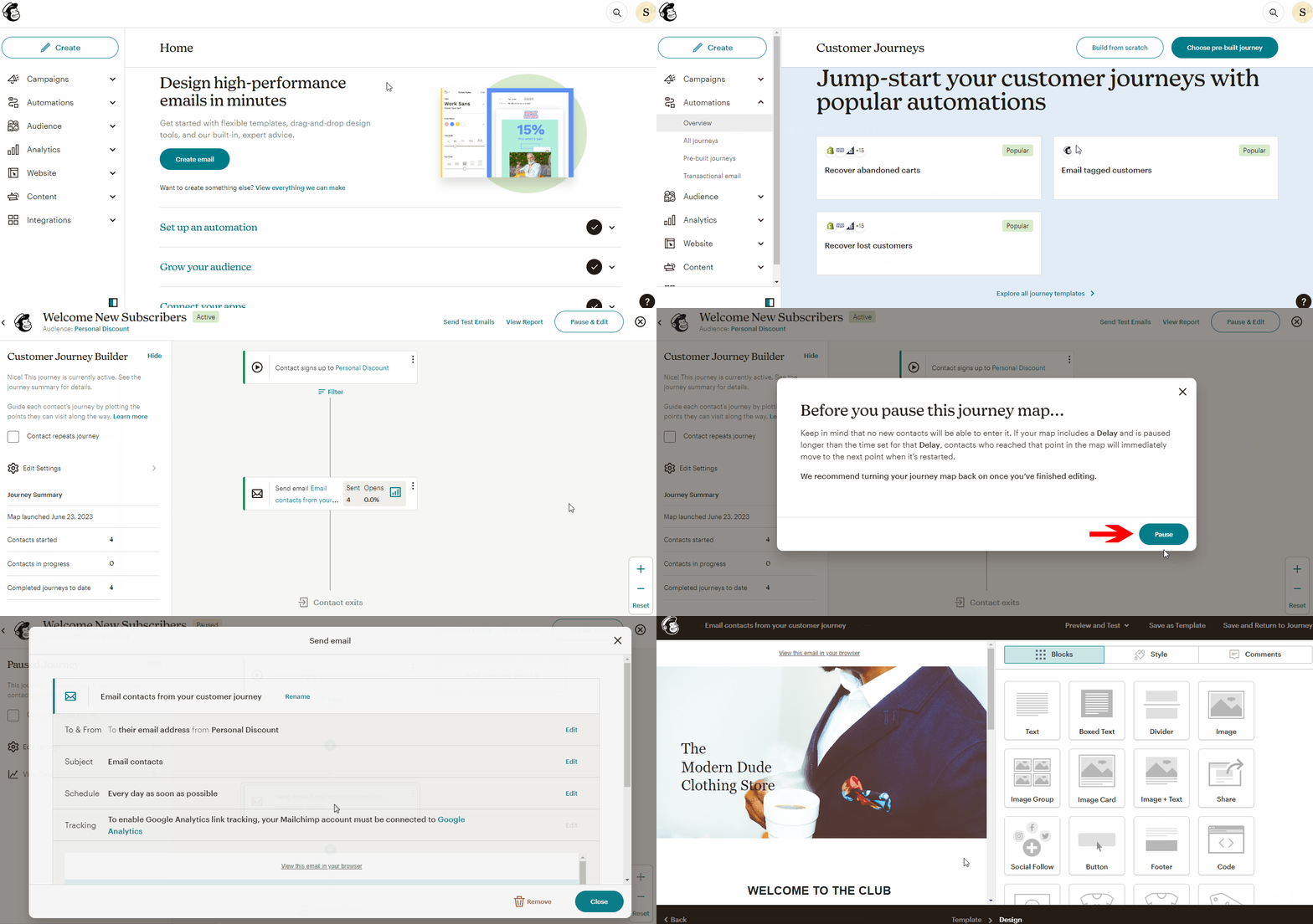
If you're creating the welcome email from scratch then [move to the next section](#create-an-automated-welcome-email-in-mailchimp). Otherwise, if you already have a running welcome email, navigate to the **Automations section**, and click on **All Journeys**. Locate the automated welcome email, show the drop-down menu next to View Report and click on **View Journey**. Then hit **Pause & Edit,** click on **Send email** point → **Edit Email Content**.

<figure><img src="https://3731721370-files.gitbook.io/~/files/v0/b/gitbook-x-prod.appspot.com/o/spaces%2F-LZdVZovthV0SPlgxS6Y%2Fuploads%2F2FcMF86VIPpgTDhJGHhj%2Fmailchimp-edit-journey-animated.gif?alt=media&amp;token=bc0df164-0065-4993-b548-cfbf3fe37596" alt="How to edit a Mailchimp Journey"><figcaption><p>Edit a Mailchimp Customer Journey for a Discounteo welcome automation</p></figcaption></figure>

At this point you can [skip to the section on how to include discount code in your welcome automation](#include-discount-code-merge-tag).

#### Create an automated welcome email in Mailchimp

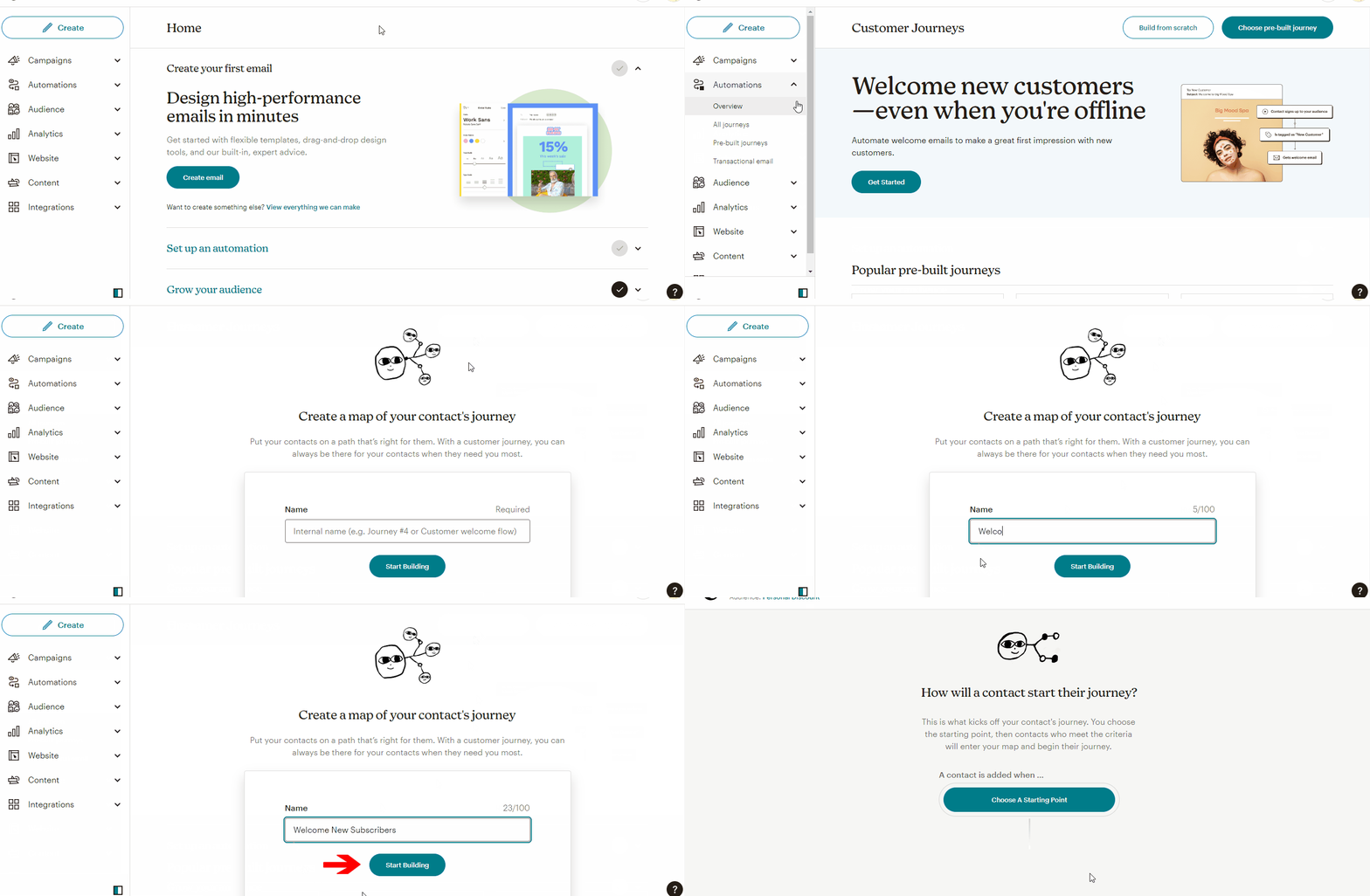
Log in to your Mailchimp account and click on **Automations** from the left-hand sidebar. Then hit **Build from scratch** and type a name of your new automation.&#x20;

<figure><img src="https://3731721370-files.gitbook.io/~/files/v0/b/gitbook-x-prod.appspot.com/o/spaces%2F-LZdVZovthV0SPlgxS6Y%2Fuploads%2F0gjyk2WLLxv9SvPxczZ1%2Fmailchimp-add-new-automated-customer-journey-animated.gif?alt=media&amp;token=f961ba1b-9c46-4003-907d-89cea2f56a95" alt="How to add a new Customer Journey in Mailchimp"><figcaption><p>Add a new Mailchimp Customer Journey for your Discounteo welcome automation</p></figcaption></figure>

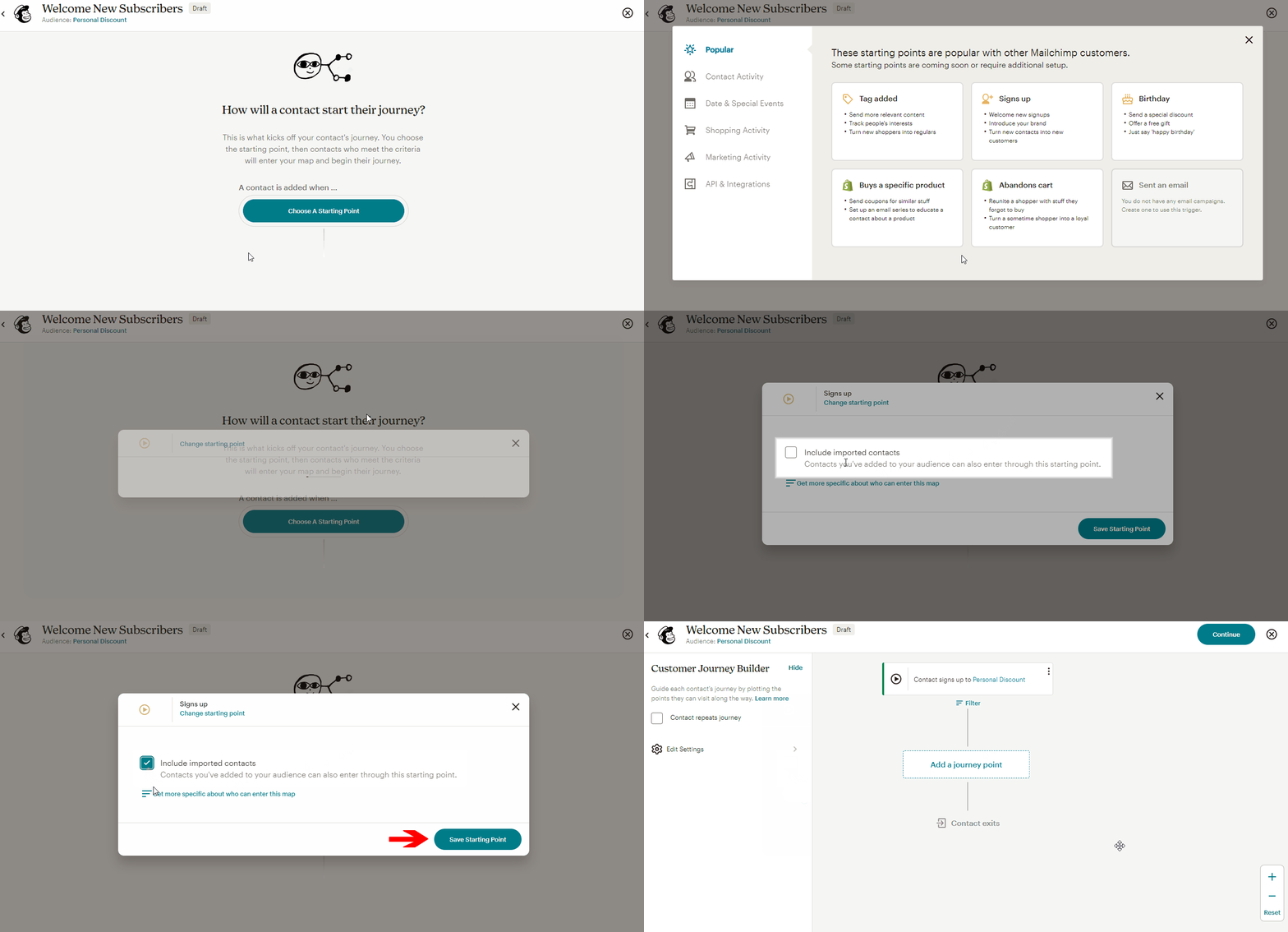
**Choose a staring point**, for us it is **Signing up**. You can also decide whether to **include imported contacts**.

<figure><img src="https://3731721370-files.gitbook.io/~/files/v0/b/gitbook-x-prod.appspot.com/o/spaces%2F-LZdVZovthV0SPlgxS6Y%2Fuploads%2FrSGvWzFQruyE0pSlpUWB%2Fmailchimp-welcome-automation-choose-starting-point-animated.gif?alt=media&amp;token=c290b4b5-850b-4d45-ab96-eacf8bd5a367" alt="Choose a starting point for a Mailchimp welcome automation"><figcaption><p>Choose a starting point for a Mailchimp welcome automation</p></figcaption></figure>

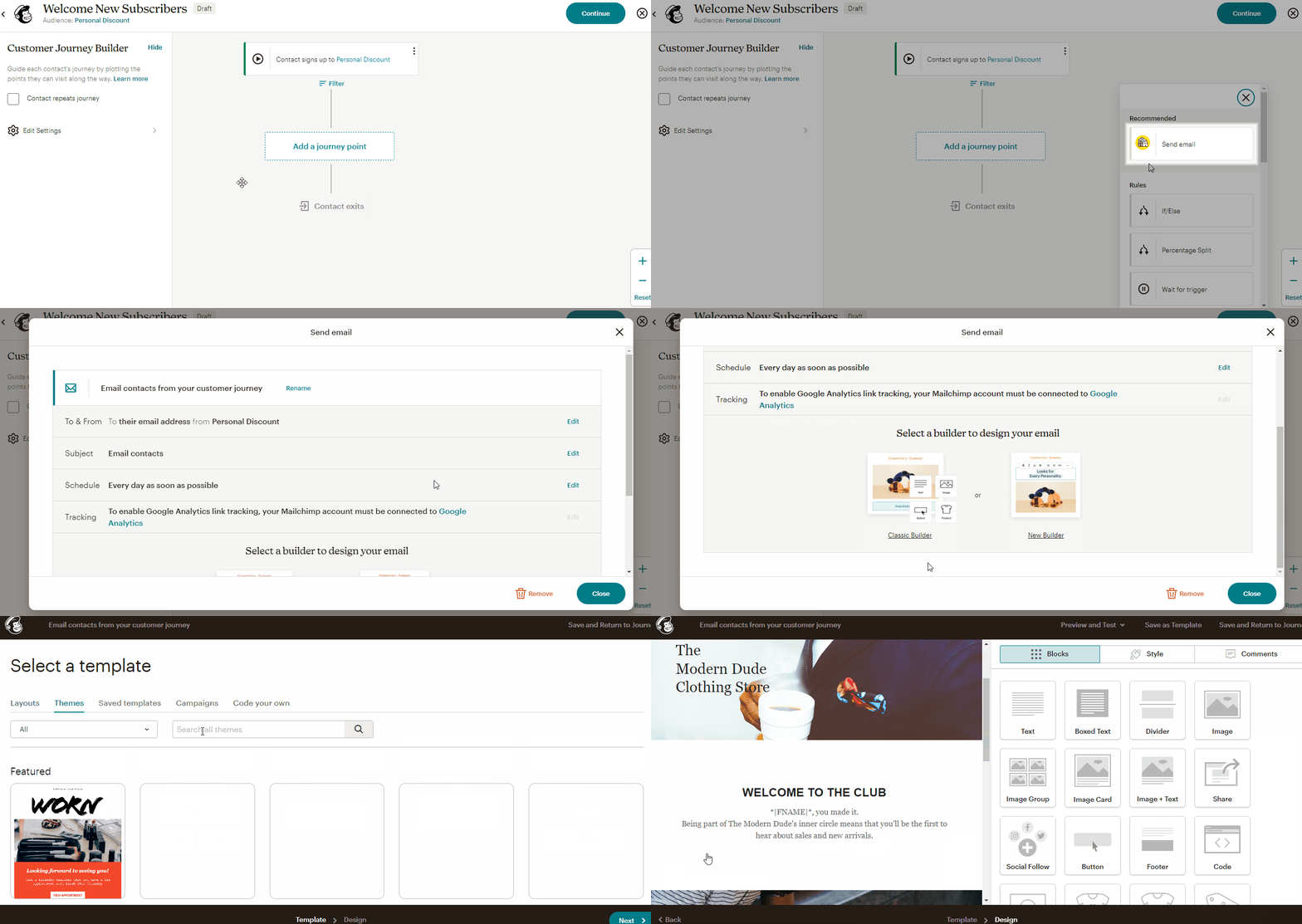
Select the action that will be taken when a customer enters the journey. In our case the action is **Send email**. Then design your welcome message. You can choose one of pre-designed themes for this.&#x20;

<figure><img src="https://3731721370-files.gitbook.io/~/files/v0/b/gitbook-x-prod.appspot.com/o/spaces%2F-LZdVZovthV0SPlgxS6Y%2Fuploads%2FioD8N7ad4kpXe9RXtY7Q%2Fmailchimp-add-and-edit-journey-point-in-welcome-automation-animated.gif?alt=media&amp;token=157bcefa-23e0-42ea-825d-ca66a21e9ab7" alt="Add an email as a journey step in a Mailchimp welcome automation"><figcaption><p>Add an email as a journey step in a Mailchimp welcome automation</p></figcaption></figure>

#### Include discount code merge tag

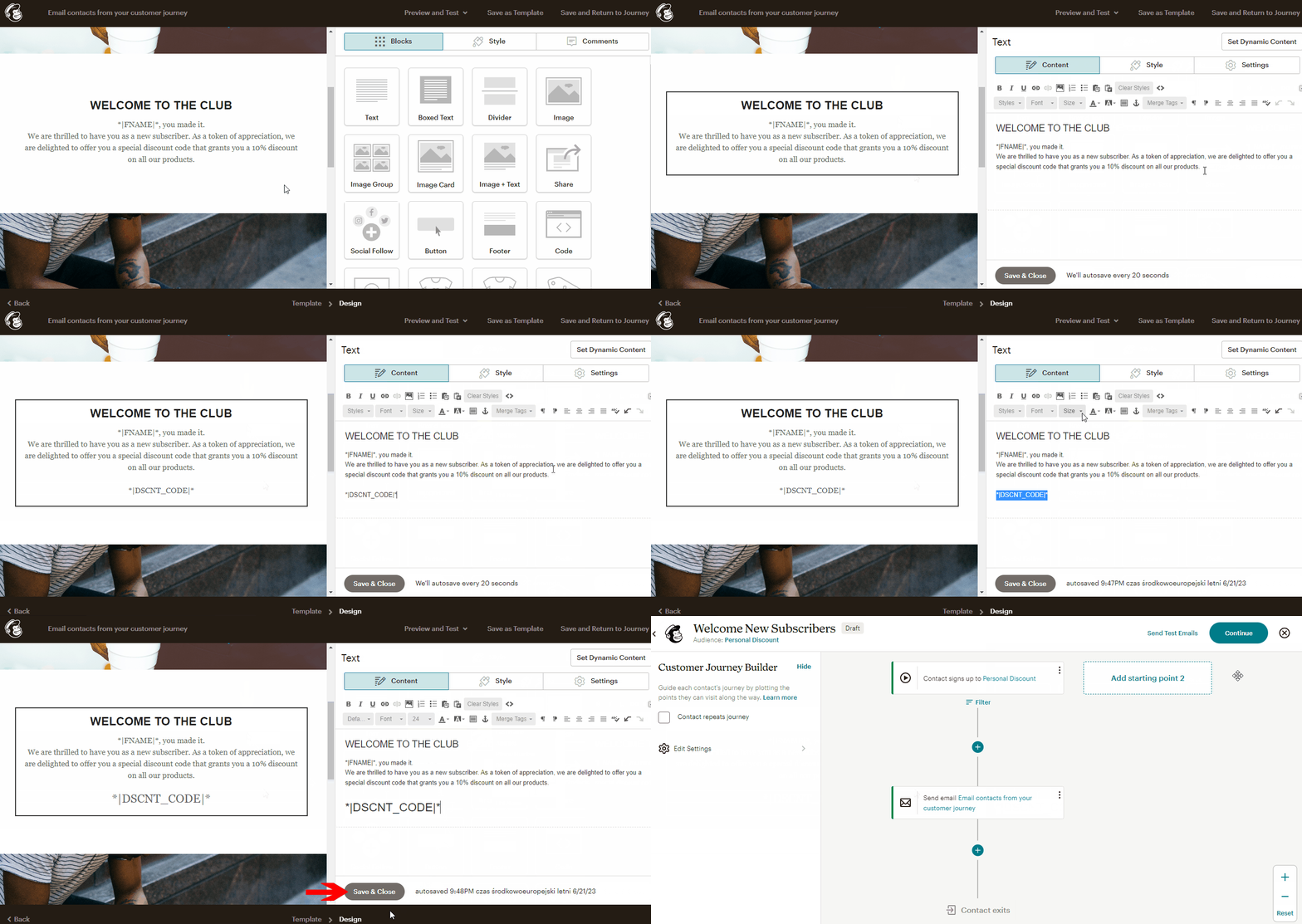
While preparing the email template, insert Shopify Discount Code merge tag into one of the merge text elements. It can be modified in the same way as other text. **Save & Close** the text element and if your template is ready, hit **Save and Return to Journey**.

<figure><img src="https://3731721370-files.gitbook.io/~/files/v0/b/gitbook-x-prod.appspot.com/o/spaces%2F-LZdVZovthV0SPlgxS6Y%2Fuploads%2FiOrxWr5ApK9bmKGMg2zQ%2Fmailchimp-insert-personal-discount-code-for-shopify-into-welcome-automation-animated.gif?alt=media&amp;token=2fc0324b-d7f6-44c7-984b-65512dfe3bf4" alt="Insert a Personal Discount code into a Mailchimp welcome email template"><figcaption><p>Insert the Discounteo code into a Mailchimp welcome email template</p></figcaption></figure>

In an actual email, the merge tag will be replaced with a unique discount code.

#### Ensure discount code is not blank <a href="#ensure-discount-code-is-not-blank" id="ensure-discount-code-is-not-blank"></a>

At this point, you could start the automation and it would work most of the times. However, there may be instances where Mailchimp is faster with sending the welcome email than Discounteo is at creating the discount code and pushing it to Mailchimp. In such case, the email would be sent out without a discount code. See the article below for more details.

[Discount codes are not appearing in the emails sent by Mailchimp](/discounteo-for-shopify/troubleshooting/discount-codes-are-not-appearing-in-the-emails-sent-by-mailchimp.md)

#### Activate Mailchimp Journey

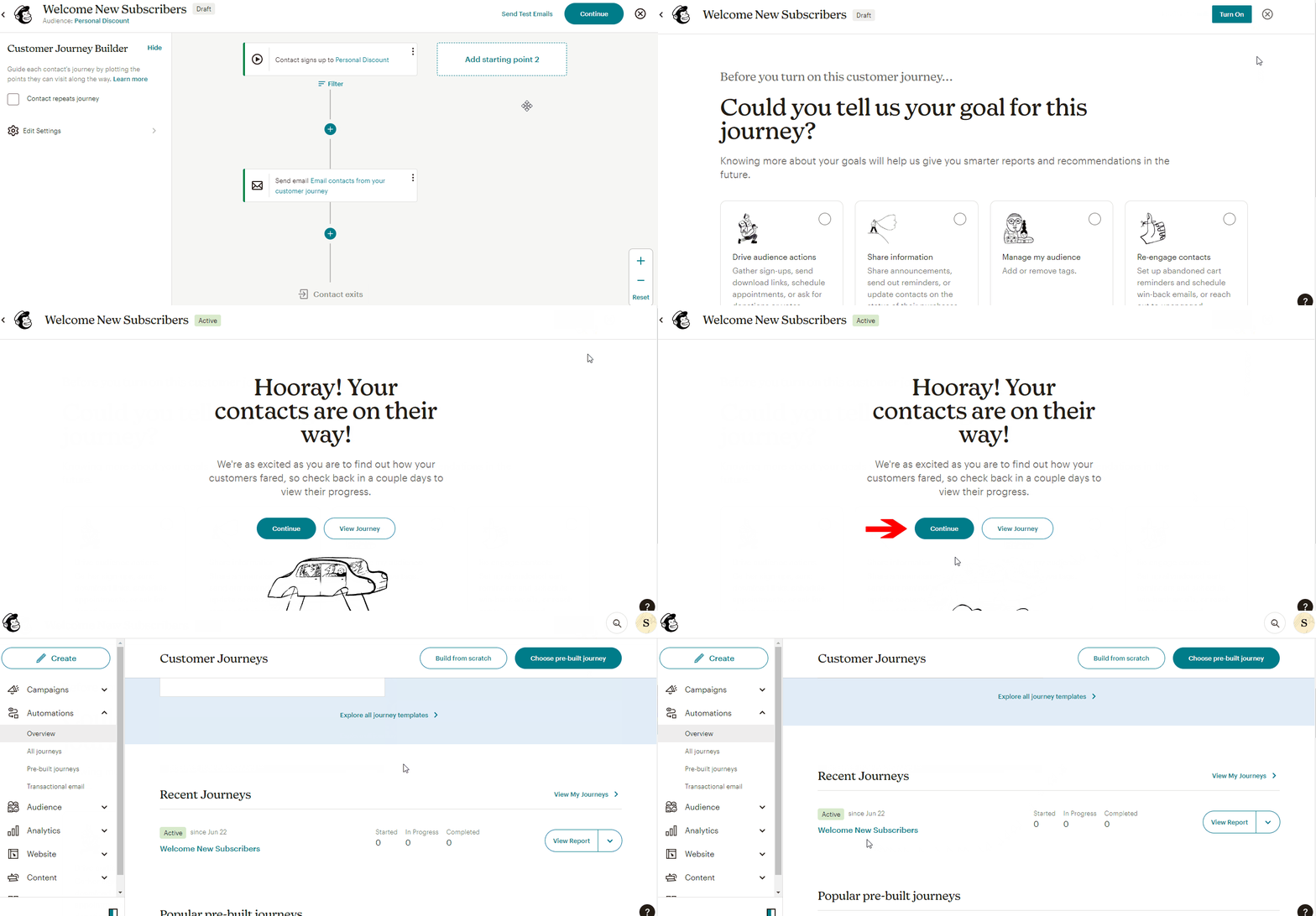
When the automation is ready, it's high time to activate it. Hit **Continue** and **Turn On**. Then the Journey will appear on the automations list with the status Active.

<figure><img src="https://3731721370-files.gitbook.io/~/files/v0/b/gitbook-x-prod.appspot.com/o/spaces%2F-LZdVZovthV0SPlgxS6Y%2Fuploads%2Fqvrx4qaIyIhyybEfLdlV%2Fmailchimp-activate-welcome-automation-animated.gif?alt=media&amp;token=4db42338-2bd1-4845-8f37-d231116f6dd1" alt="Activate a Mailchimp welcome automation"><figcaption><p>Activate a Mailchimp welcome automation with a Discounteo discount code</p></figcaption></figure>

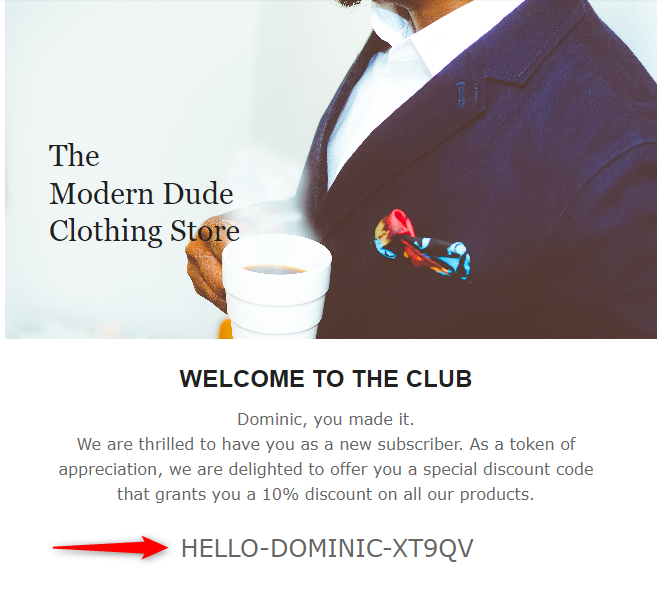
From now on, your customers will receive a welcome message with a discount code when they sign up to your newsletter.

<figure><img src="https://3731721370-files.gitbook.io/~/files/v0/b/gitbook-x-prod.appspot.com/o/spaces%2F-LZdVZovthV0SPlgxS6Y%2Fuploads%2FLc2sBYK0gbVyUZ3vxW4w%2Fmailchimp-welcome-email-with-personal-discount-code-shopify.png?alt=media&amp;token=3e61664b-1c7c-4b09-b9f8-7c5b5857187d" alt="Mailchimp welcome email with a Discounteo discount code for Shopify"><figcaption><p>Mailchimp welcome email with a Discounteo discount code for Shopify</p></figcaption></figure>