For the complete documentation index, see llms.txt. This page is also available as Markdown.

How to set up an abandoned cart email in Mailchimp?

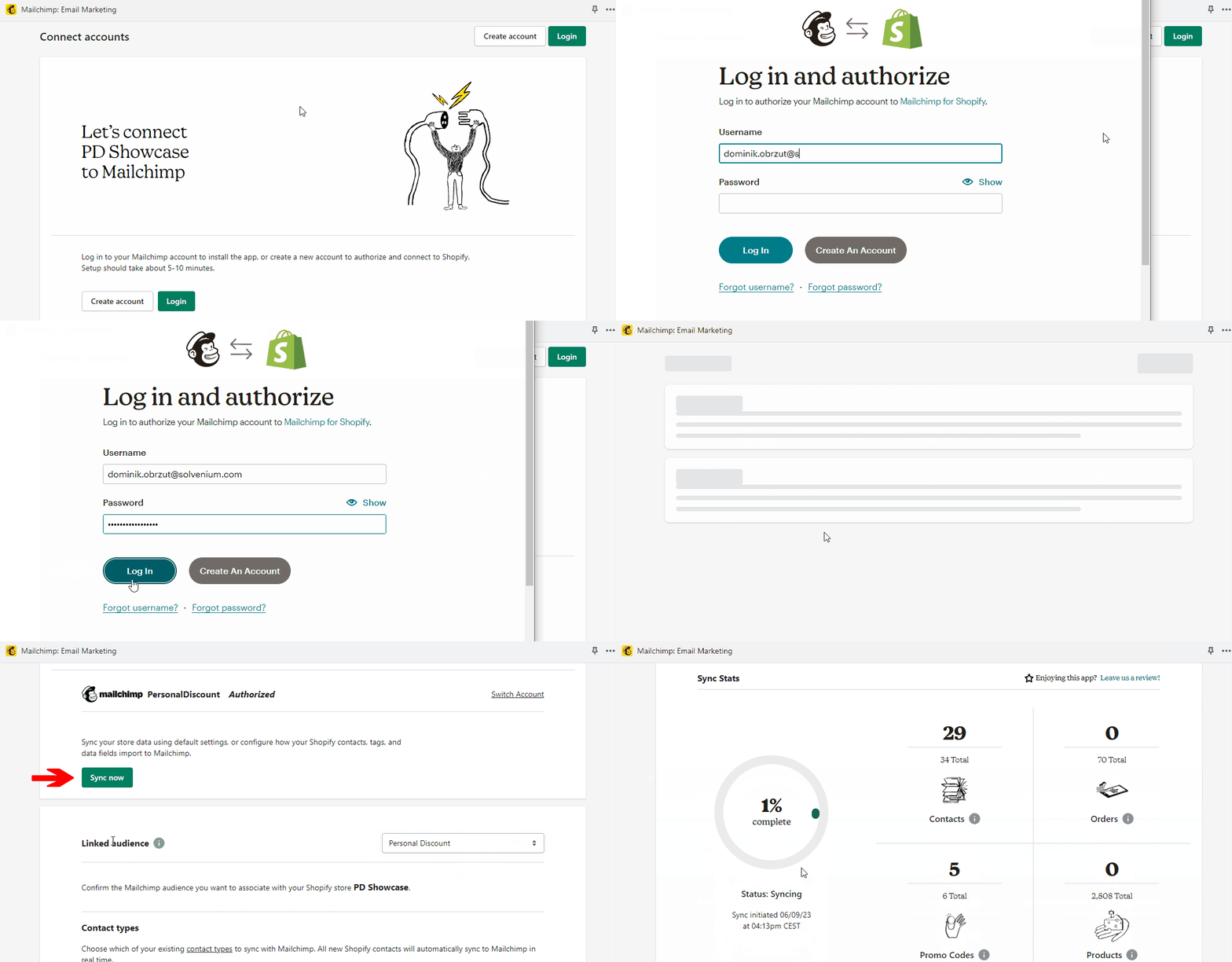
Integrate your Shopify store with Mailchimp

To set up an automated cart recovery email, you need an app that can synchronize abandoned carts with Mailchimp, such as Mailchimp: Email Marketing. Install it in your store and connect with your Mailchimp account.

While configuring the Mailchimp app, ensure that the list chosen in Linked Audience section matches the list selected in Discounteo. Then hit Sync now.

How to synchronize your Shopify store with a Mailchimp account
Synchronize your Shopify store with your Mailchimp account
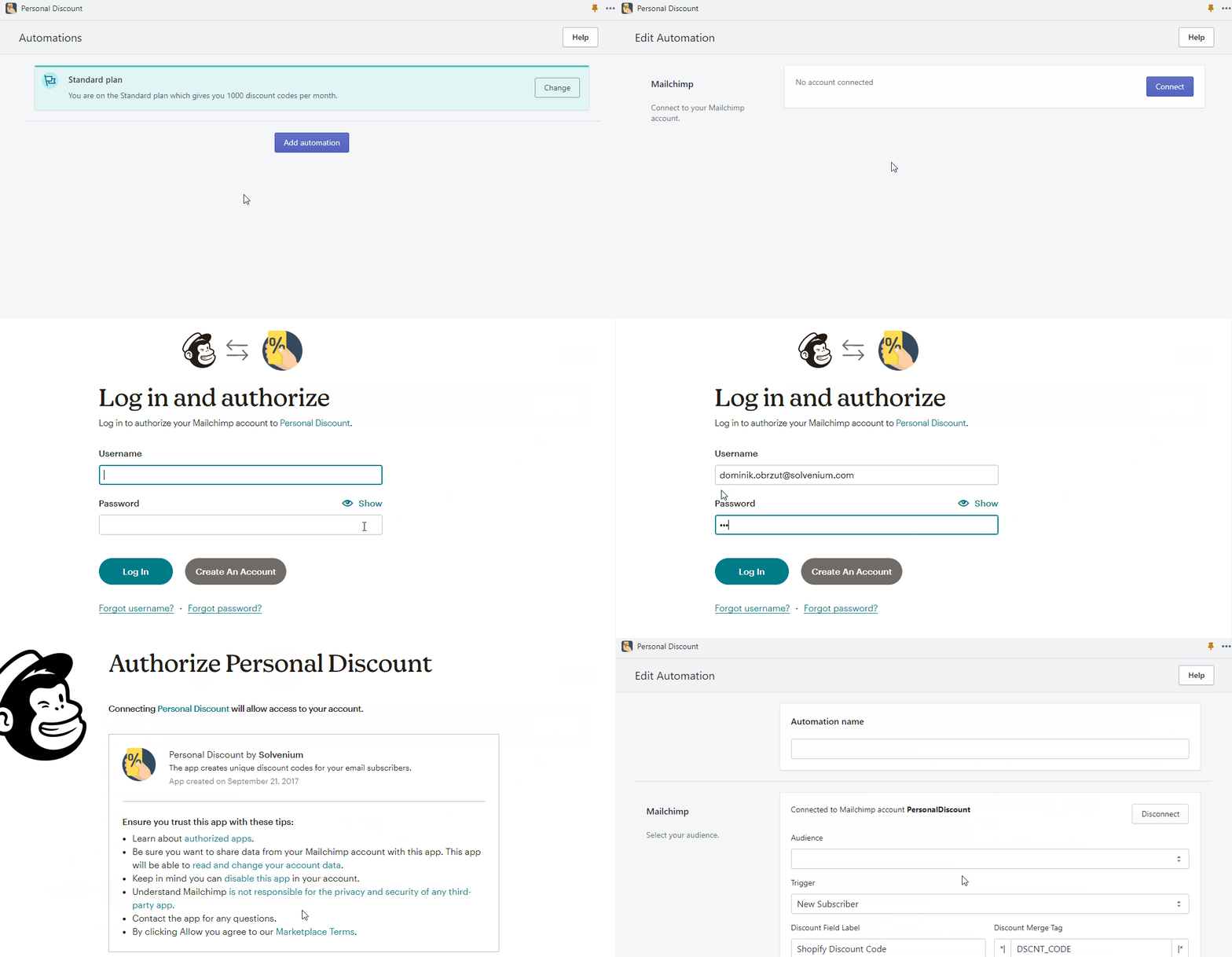
Discounteo Settings

Navigate to Discounteo. Click on Add automation and connect the app with your Mailchimp account.

How to create a Discounteo automation for Mailchimp
Create a Discounteo automation for Mailchimp

In the next step, provide the automation name, select the audience (the same as in the Mailchimp app). Then pick the Abandoned Cart trigger and specify a time period after which a cart should be considered as abandoned.

Discounteo settings for a Mailchimp abandoned cart automation
Discounteo settings for an abandoned cart automation with Mailchimp

Discounteo adds a customer who abandoned a cart to the selected list in MailChimp. The app also creates a unique discount code and assigns it to the member's profile as a merge tag DSCNT_CODE.

Now you can set up details of your automation such as a discount value, usage limit, or expiration date. Learn more from this article on how to configure your discount.

Mailchimp automation

Switch over to Mailchimp to create a Journey for customers that abandoned their cart. Click on Automations on the left sidebar → Build from scratch and type a name of your automation.

How to create a new automation in Mailchimp
Create a new automation in Mailchimp
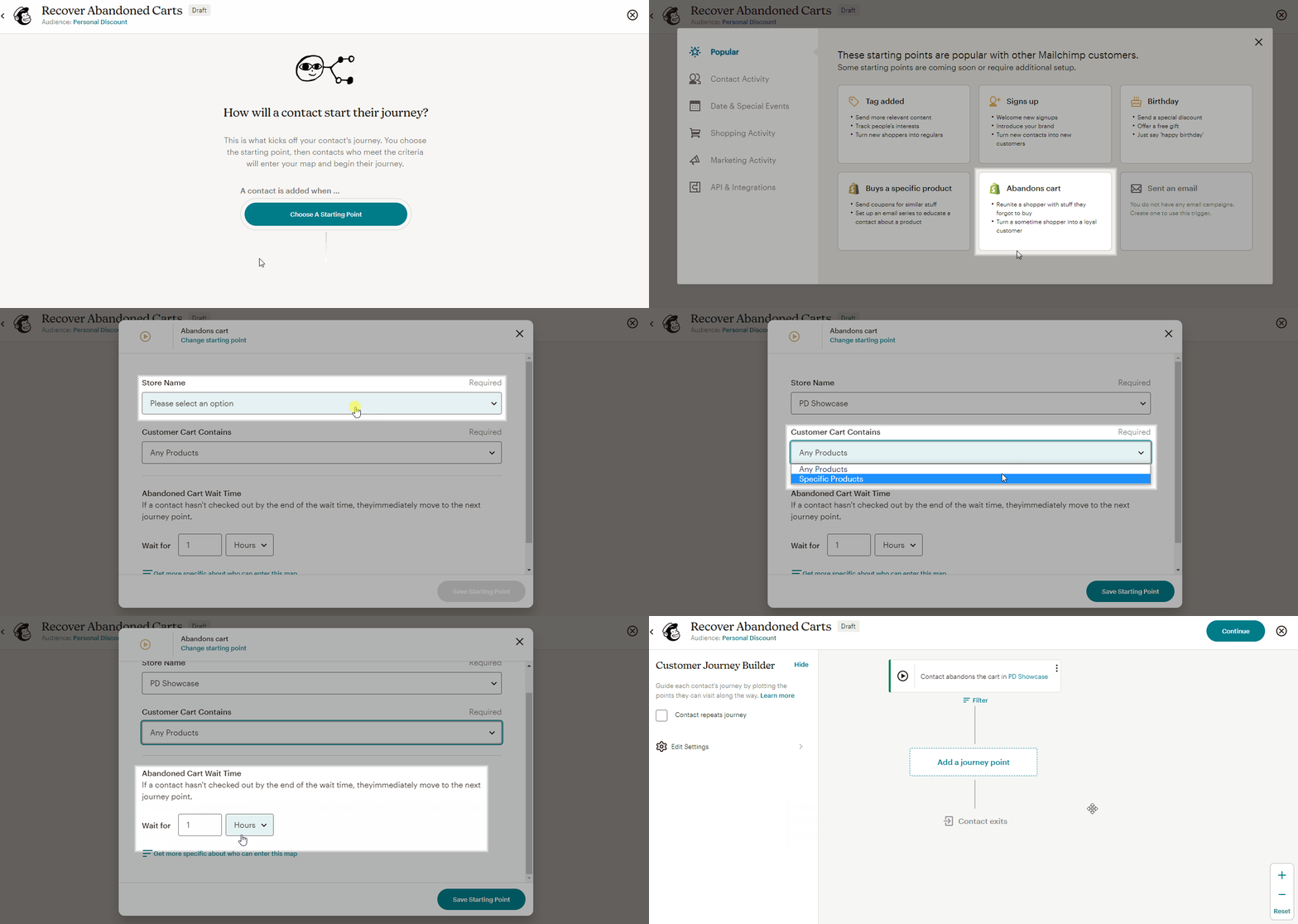
Now set the starting point. Select Abandons cart as the starting point from the available options. Then choose the Store name from which customers will take part in this campaign. You can also indicate if the Customer Cart should contain any or a specific product and Abandoned Cart Wait Time. The Wait for value cannot be shorter than the one specified in Discounteo.

Set the starting point for the Recover Abandoned Cart automation in Mailchimp
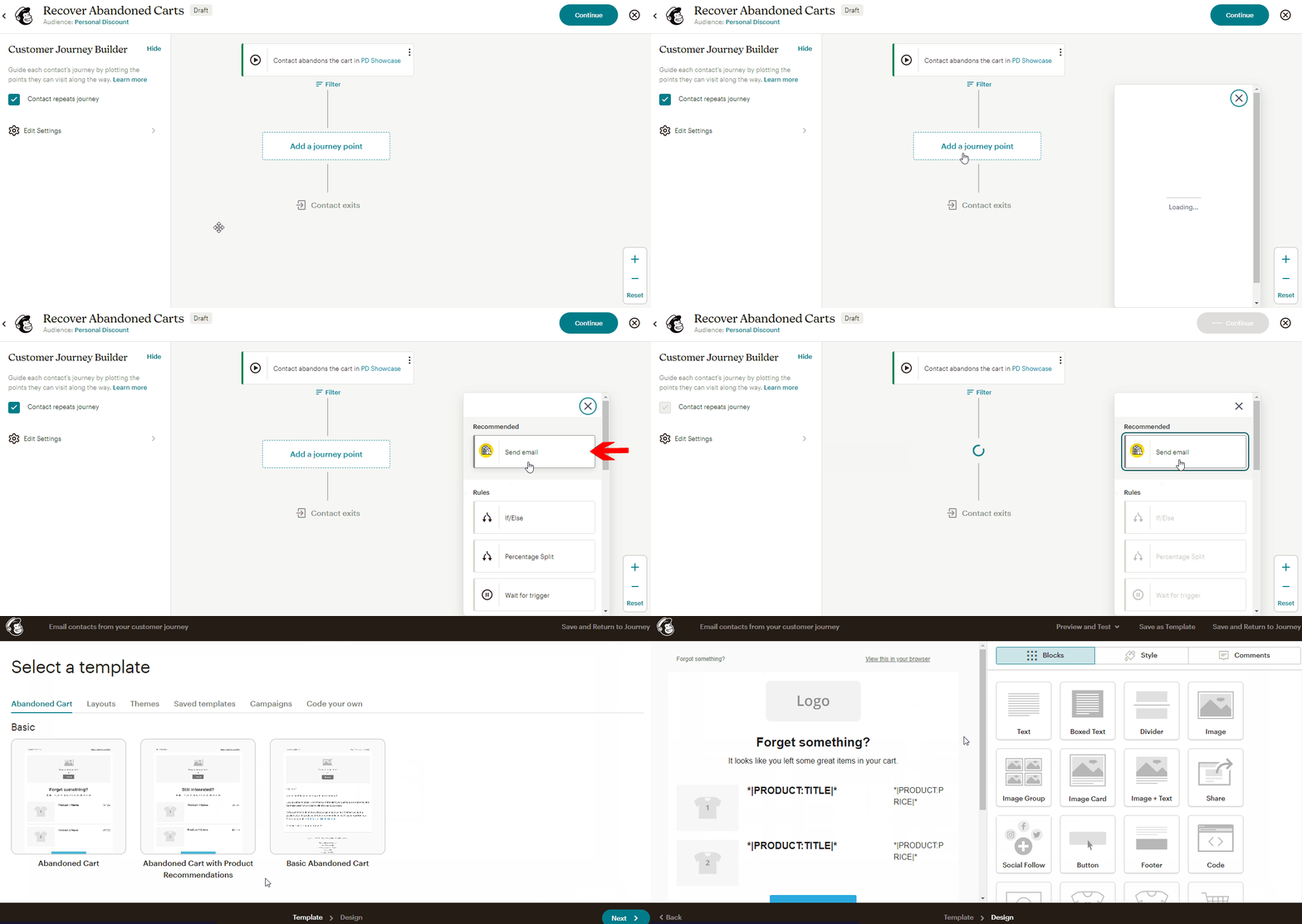
Select the action that will be taken when a customer enters the journey. In our case the action is Send email. You can choose how you want to design it.

Add a sending email as a journey step in Mailchimp
Add an email as a journey step in Mailchimp

When preparing the email template, insert Shopify Discount Code merge tag into one of the merge text elements. It can be modified in the same way as other text. Save & Close the text element and if your template is ready, hit Save and Return to Journey.

Insert a Shopify discount code merge tag into a Mailchimp email template
Insert the Shopify discount code merge tag into a Mailchimp email template

When the automation is ready, it's high time to activate it. Hit Continue and Turn On. Then the Journey will appear on the automations list with the status Active.

Mailchimp: Activate an automation
Activate a Mailchimp automation

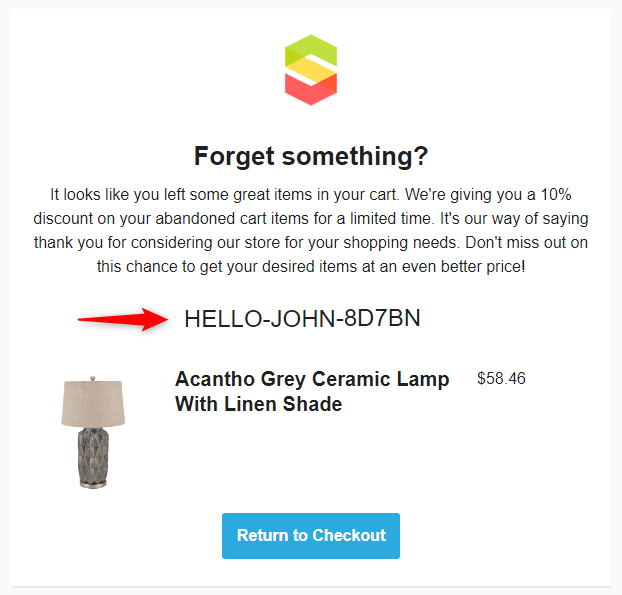
From now on, your customers will receive a message with a discount code one hour after abandoning their cart.

Mailchimp message with a Discounteo discount code
A Mailchimp message with a Discounteo discount code

Last updated