For the complete documentation index, see llms.txt. This page is also available as Markdown.

How to display a discount code as an image in a Mailchimp message

Would you like the discount code in the Mailchimp message to be displayed as an image that, when clicked on, redirects the customer to your shop with the discount code applied?

This is a method that Discounteo uses to integrate with any other email marketing service (other than Mailchimp, but it also works with Mailchimp). The HTML snippet generates a unique discount code when a recipient opens the email for the first time. The key advantage, in this case, is that it's no longer needed to hold on sending the email until the discount is ready. So the filter condition "Shopify Discount Code is not blank" is not necessary. Nevertheless, there is also a little disadvantage in that the discount code is shown as an image, so it's not possible to copy the code. However, the image is wrapped with a link redirecting to the checkout and automatically applying the discount code.

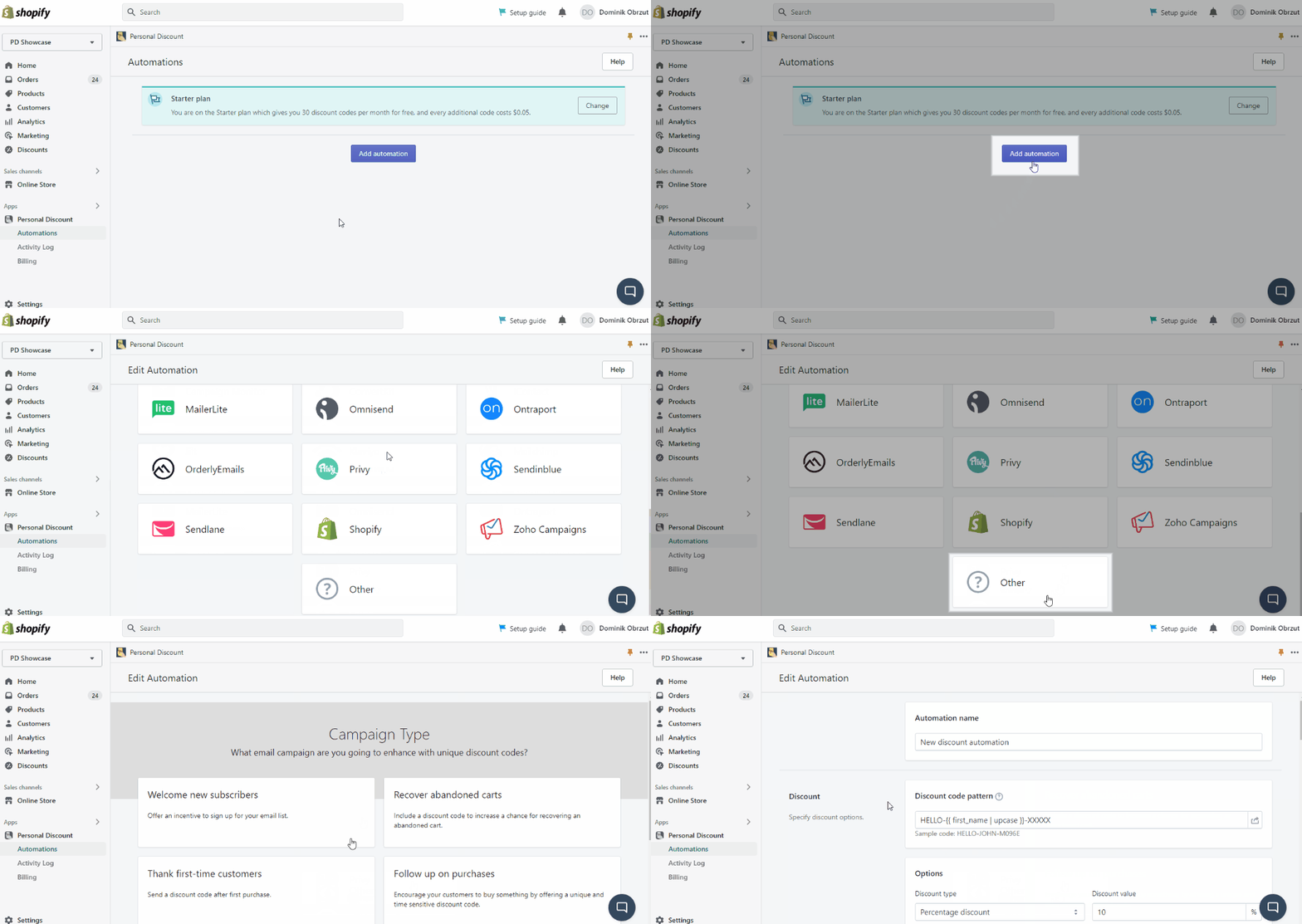
Firstly, navigate to your Shopify dashboardAppsDiscounteo and hit Add automation. Then, select Other as your Email Service Provider and the desired campaign type.

How to add a Discounteo automation
Add Discounteo automation
Set up the discount according to your needs. For more information have a look at the article on how to configure a discount.

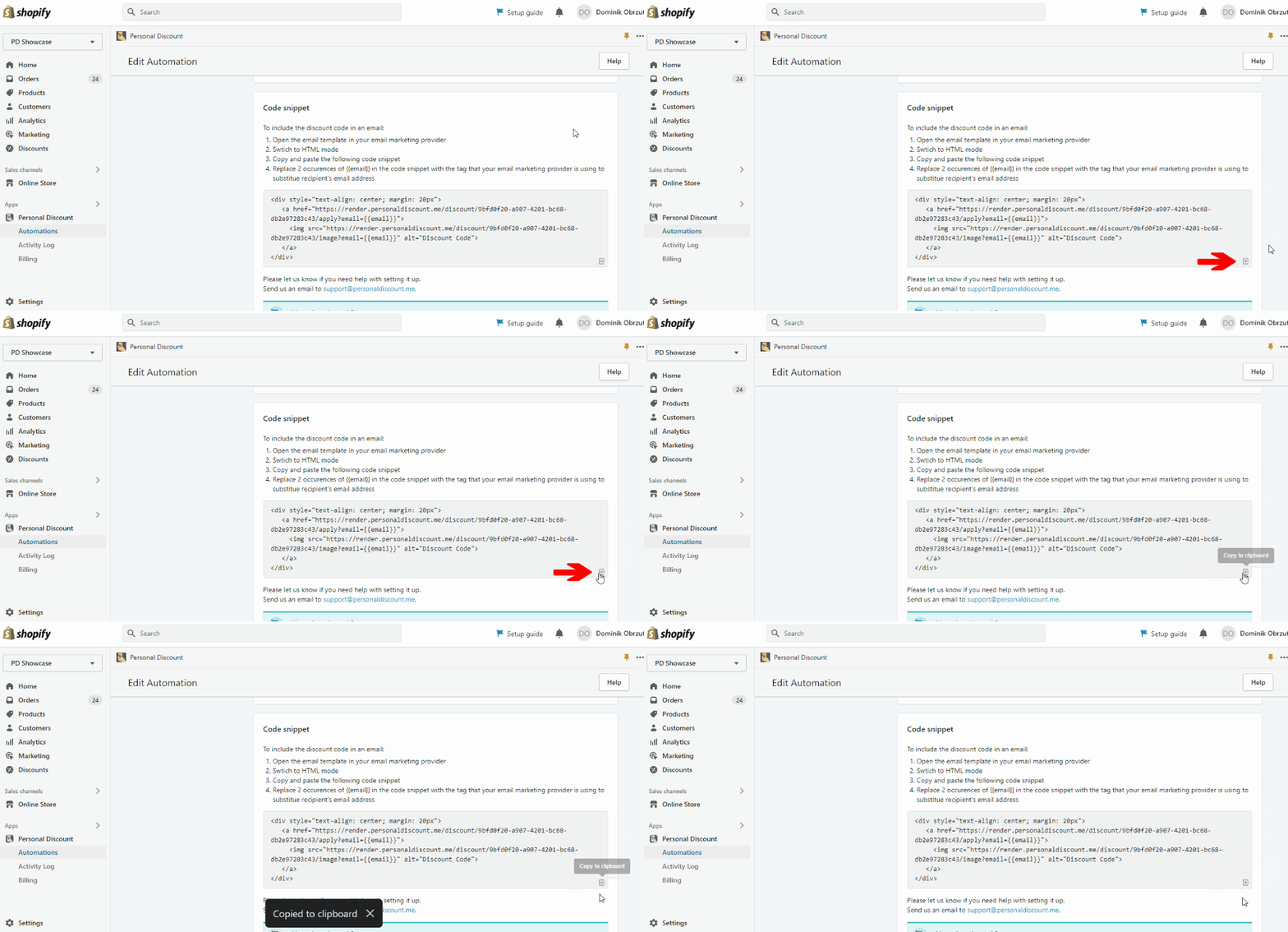
Next, copy the HTML code snippet that you can find at the bottom of the automation settings page.

How to copy a code snippet from Discounteo
Copy the code snippet from Discounteo
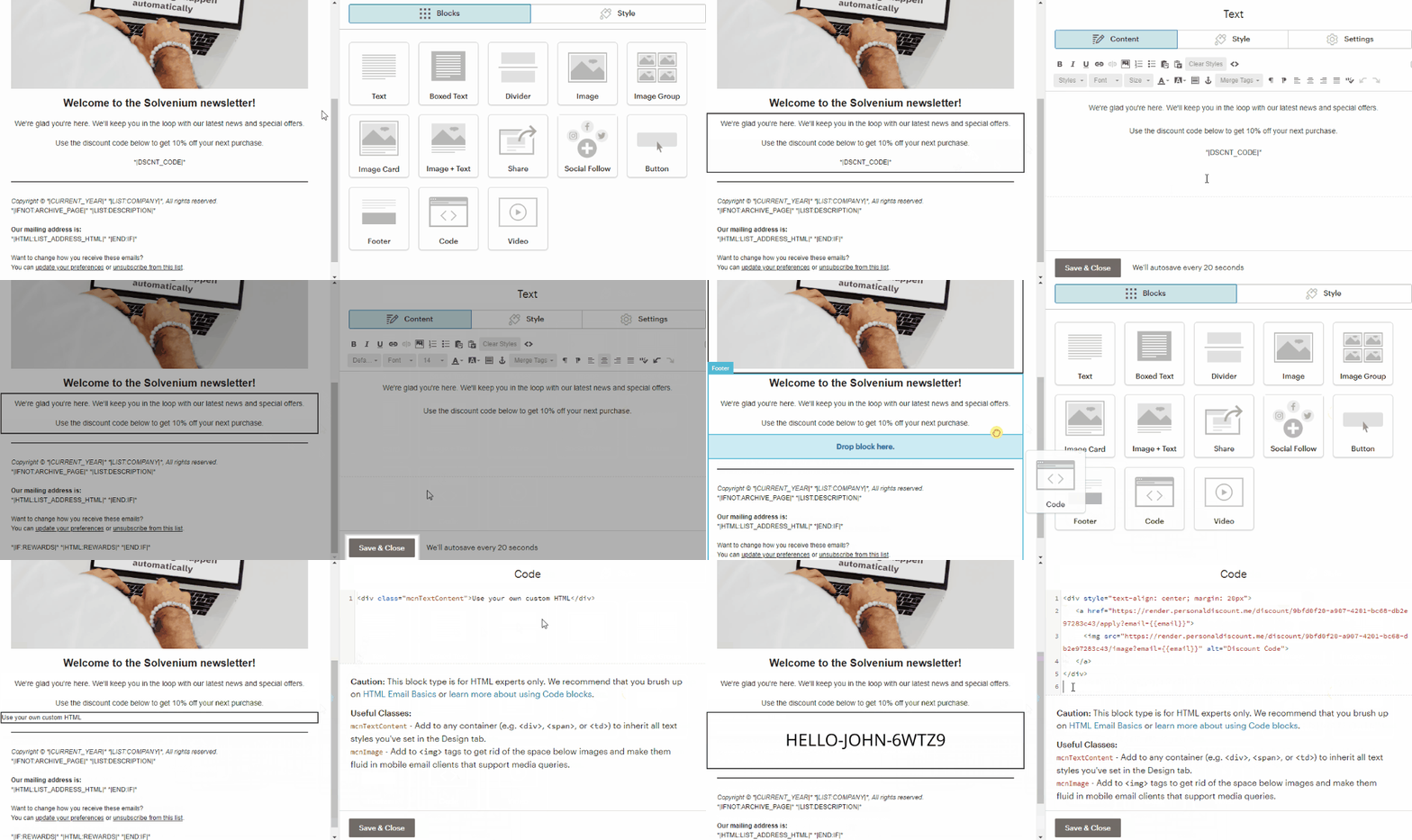
Now switch over to Mailchimp and edit an email template from your automation. If your template contains *|DSCNT_CODE|*, delete it. Next, add a code block to the email template and edit this element. Delete the default code snippet and paste the one that you copied from Discounteo.

How to insert a Discounteo code snippet into a Mailchimp email template
Insert the code snippet from Discounteo
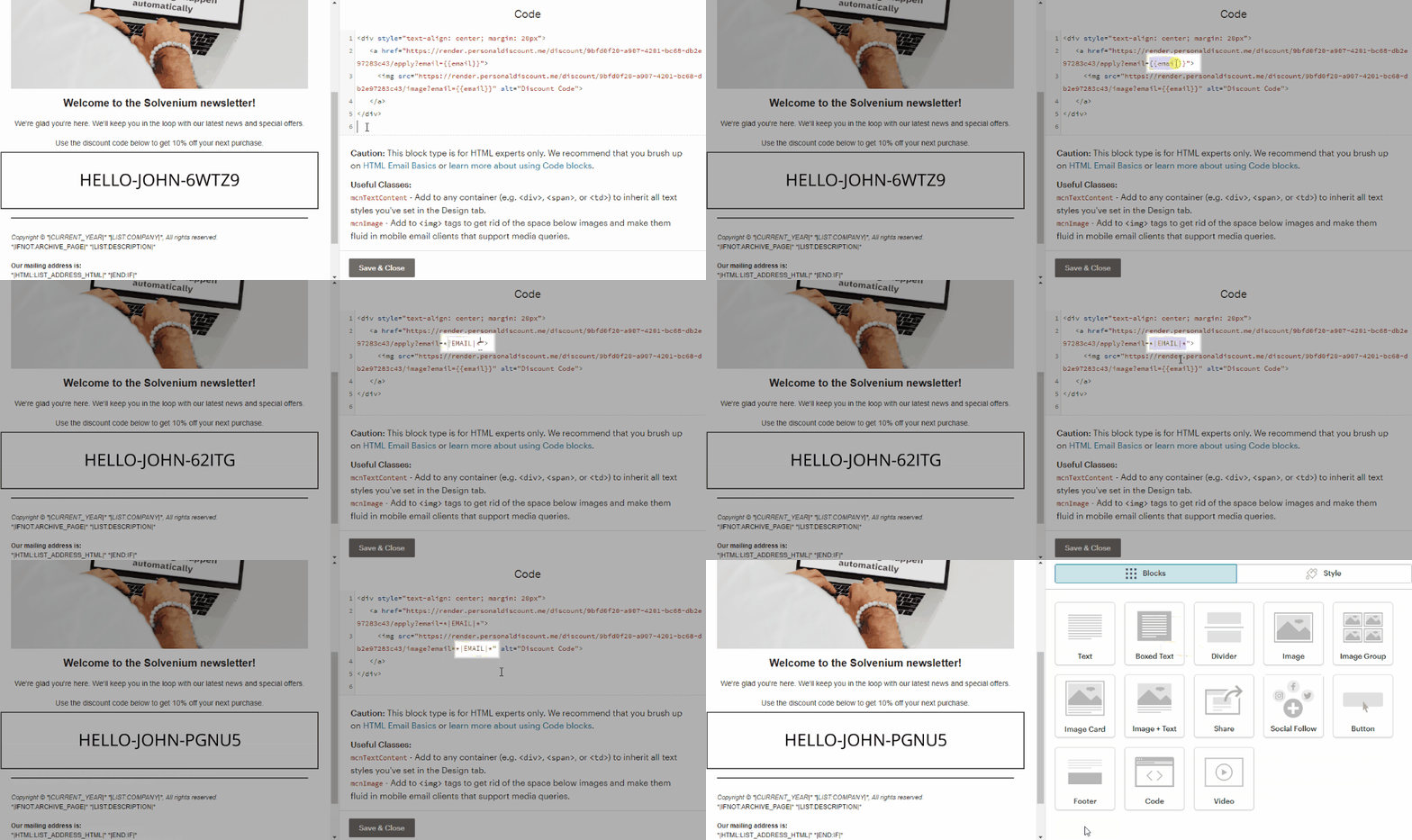
Now replace both occurrences of {{email}} with *|EMAIL|* in the code snippet you just pasted.

How to replace the email merge tag in a Discounteo code snippet
Replace {{email}} with Mailchimp customer email address merge tag
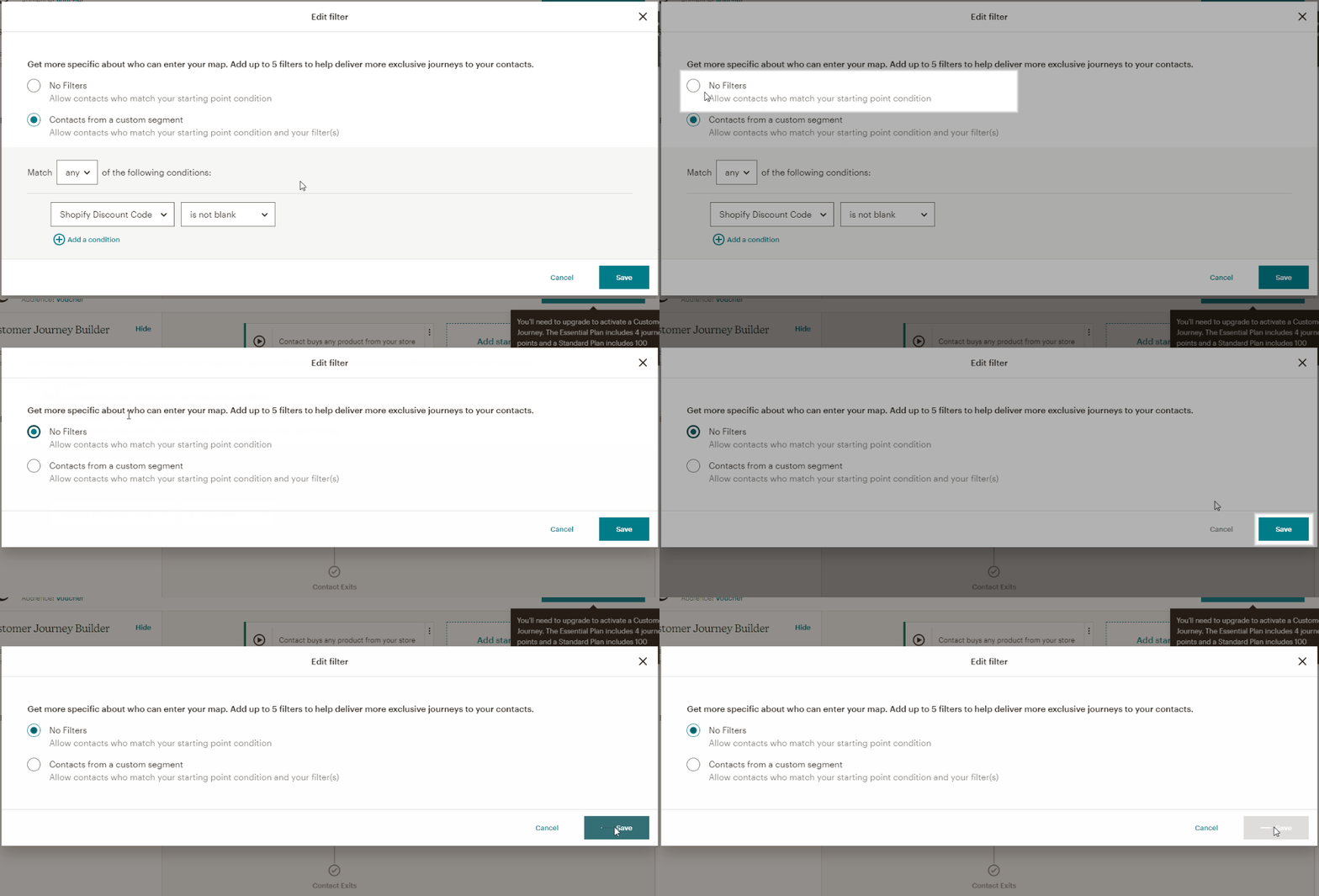
Save the email template. Finally, remove the condition discount code is not blank if it was set.

How to disable the “Shopify Discount Code is not blank” filter in Mailchimp
Disable Shopify Discount code is not blank filter in Mailchimp
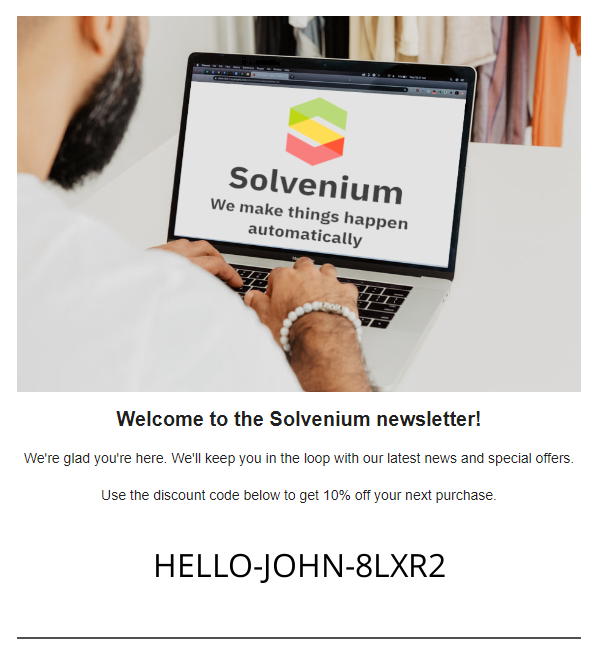
From now on, a unique discount code will be generated when a recipient opens the email for the first time. A code will be displayed as a clickable image.

Shopify Discounteo code in an email

Last updated