For the complete documentation index, see llms.txt. This page is also available as Markdown.

Send a discount code for new subscribers using Klaviyo

Email marketing is a great tool to increase your sales. How do you encourage customers to sign up for your newsletter? This guide shows how to send a discount code for new subscribers using Klaviyo.

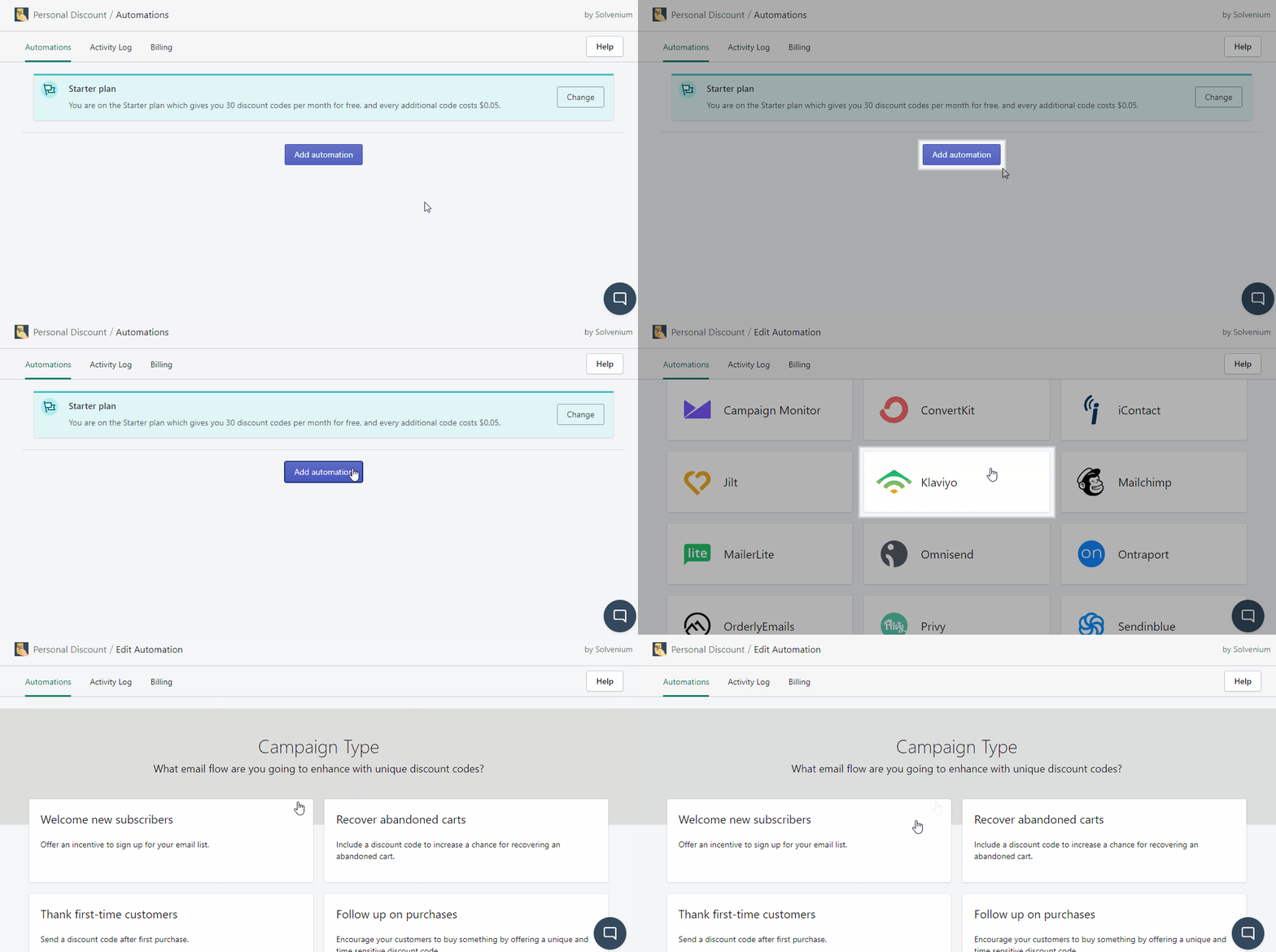
Firstly, visit your Shopify admin panel and click Apps from the left-hand sidebar. Open Discounteo and click Add automation. Select Kaviyo as your Email Service Provider and your Campaign Type is Welcome new subscribers.

Add a Discounteo and Klaviyo welcome-new-subscribers automation
Add a welcome automation for new subscribers
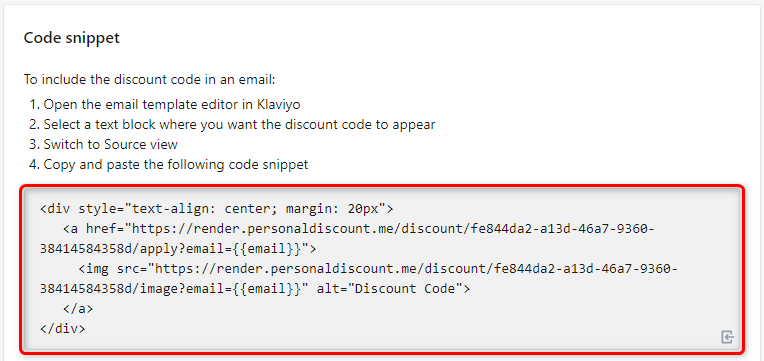
In this step, you can set up details of your automation like a discount value, usage limit, or expiration date. If you would like to learn more, here is a useful article on how to configure your discount.

Save the automation when you finish and copy the code snippet to the clipboard.

Copy the Discounteo code snippet

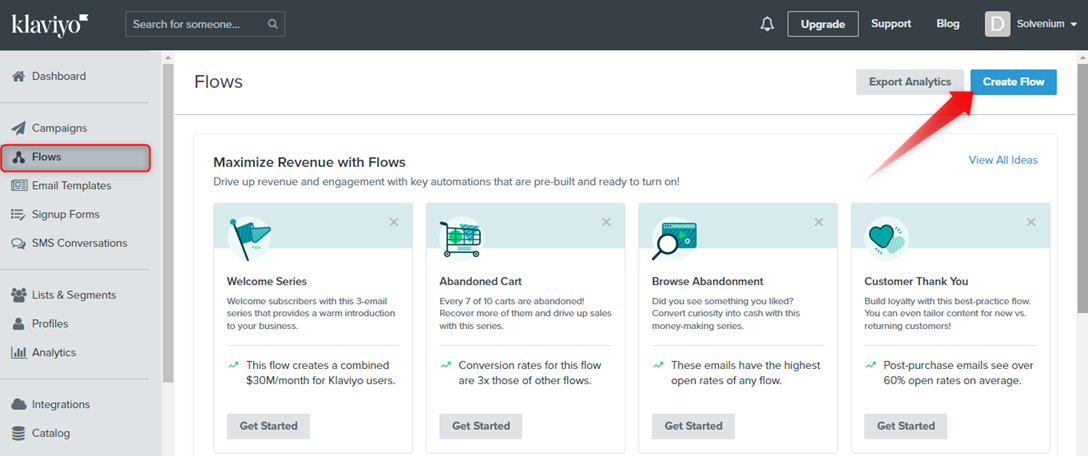
Now switch out to your Klaviyo admin panel and open Flows from the left-hand sidebar. Next, click Create flow.

How to create a Klaviyo flow
Create a Klaviyo flow

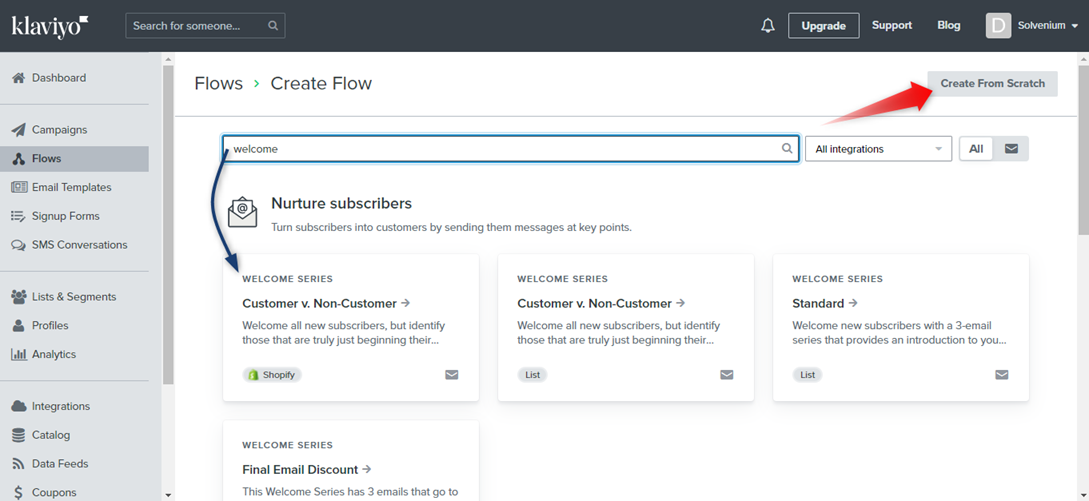
You can use a predefined automation structure or build your own. I will show you how to Create From Scratch so click it.

Create a Klaviyo flow from scratch
Klaviyo: Create a flow from scratch

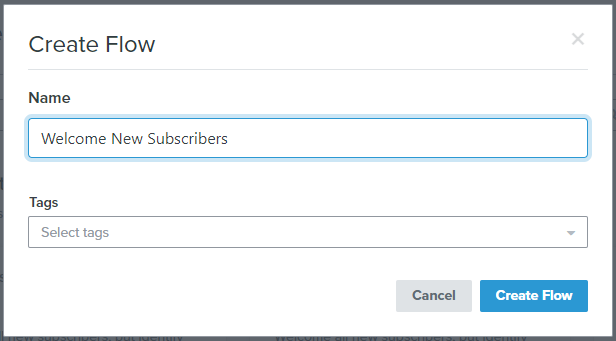
Next, enter the name of your automation.

Enter a name for your Klaviyo flow

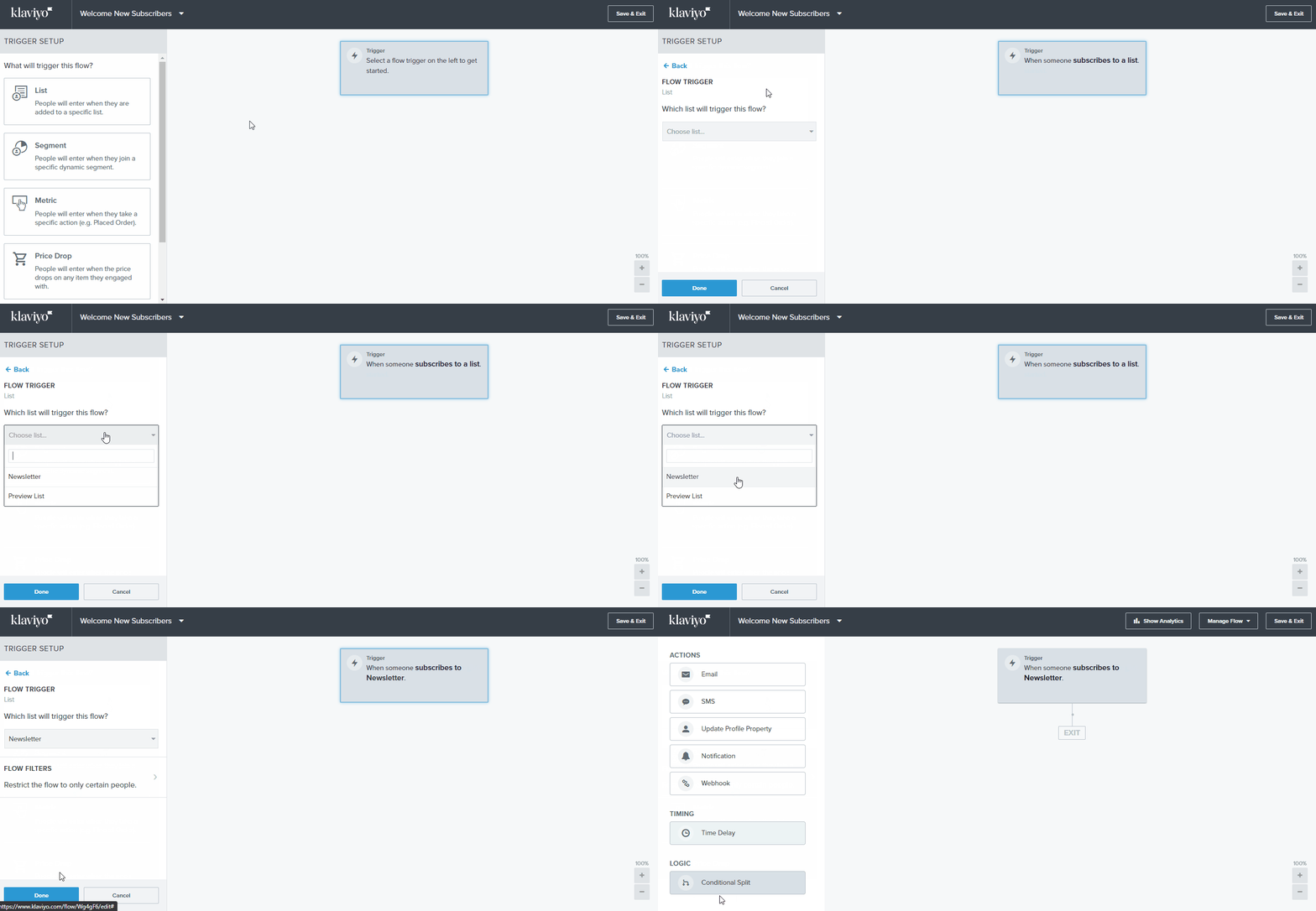
Now set the trigger which will start an action. Click it and then select List and Newsletter as a list name.

How to set a Klaviyo flow trigger
Set the trigger for your Klaviyo flow
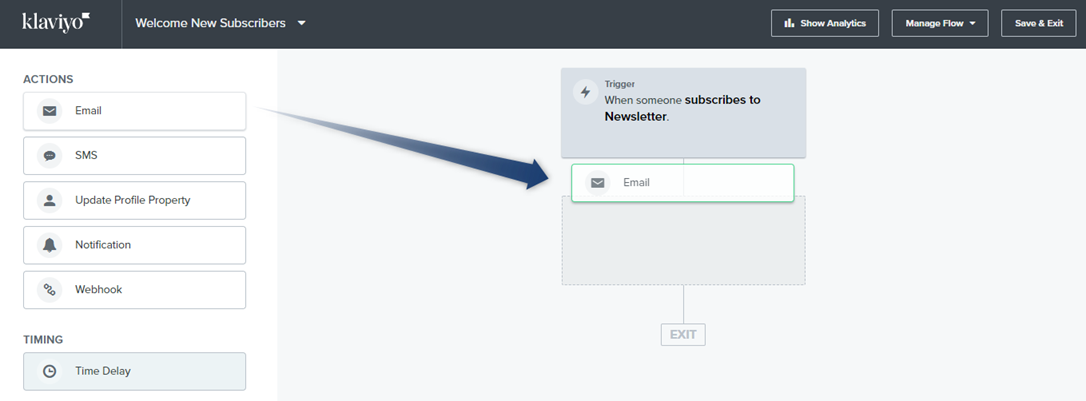
After signing up for the newsletter, your recipient should get a welcome message, so drag and drop the Email to your automation structure.

How to set an action for a Klaviyo flow
Set an action for your Klaviyo flow
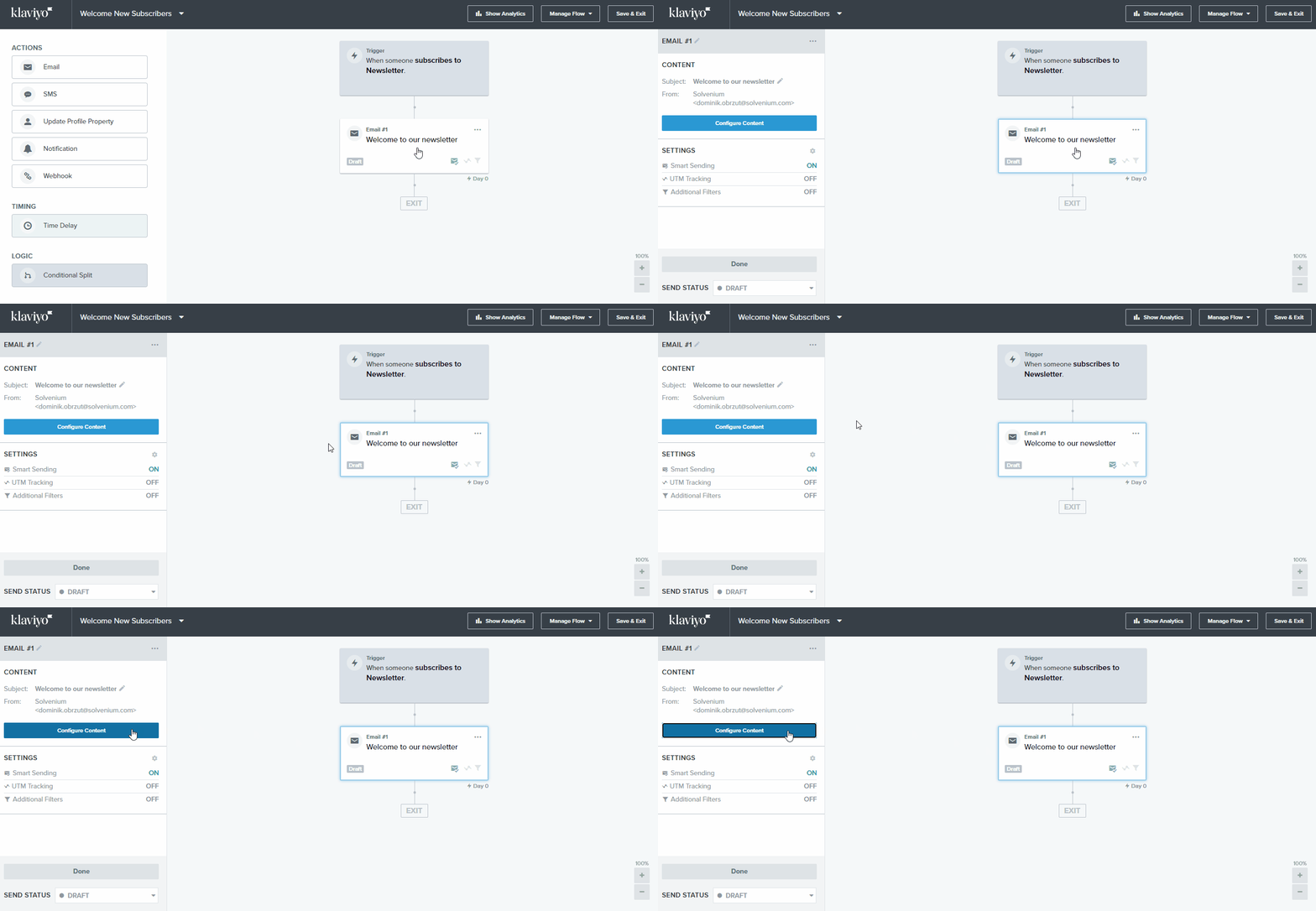
In the next step design your welcome message.

How to design a Klaviyo welcome message
Design your Klaviyo welcome message

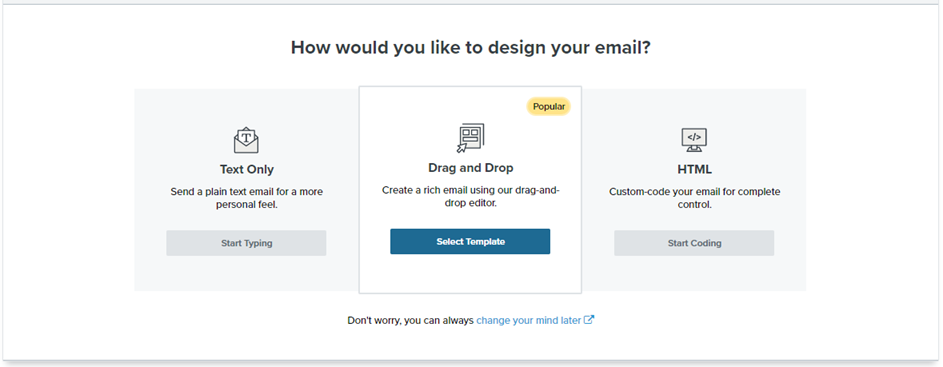
Choose the way how to design your email.

Ways to design an email in Klaviyo

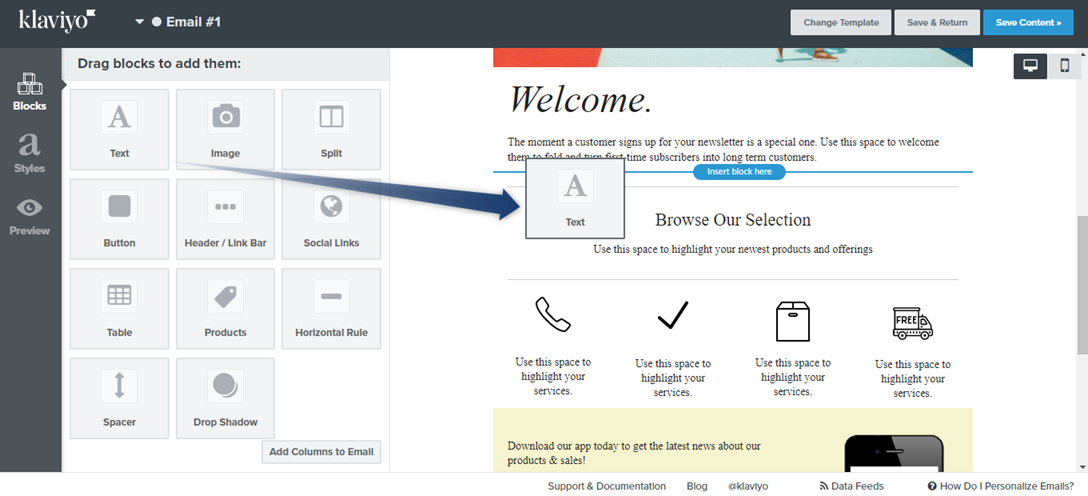
Drag and drop a text element to the email content.

Insert a text element into a Klaviyo email design
Insert a text element into your Klaviyo email design
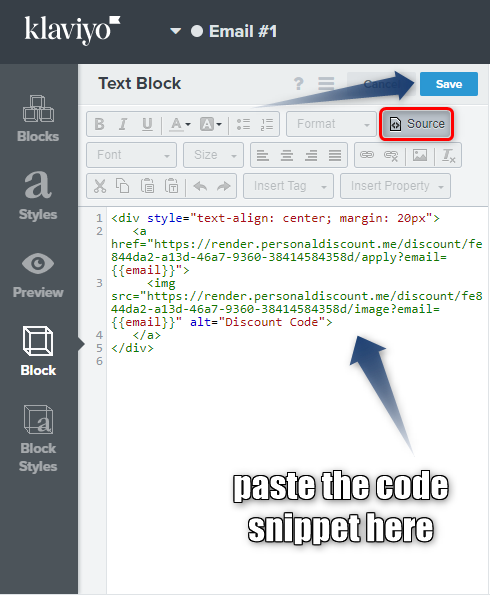
Now edit this text element. Switch view to the Source and paste the code snippet from Discounteo.

How to edit the code source in a Klaviyo text element
Edit the source code in a Klaviyo text element
Don't forget to save your content.

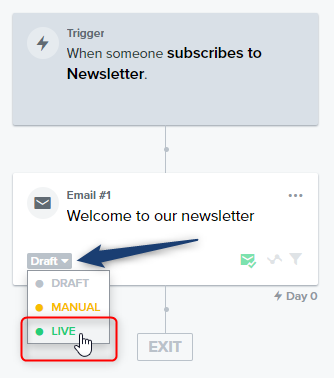
And finally, you need to start your automation. Change the status from Draft to Live.

Activate a Klaviyo automation
Activate the Klaviyo automation

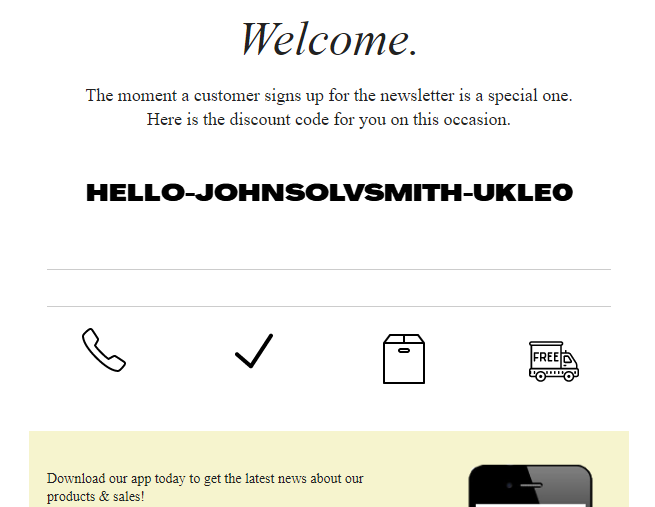
Save your automation by clicking the button at the top right. Now, when someone signs up for your newsletter, will get the discount code.

Example Klaviyo welcome message with a Discounteo discount code
Example Klaviyo welcome email with a Discounteo discount code

Last updated