For the complete documentation index, see llms.txt. This page is also available as Markdown.

How to create a post-purchase campaign to increase customers' loyalty using Klaviyo

Do you want to increase your customers' loyalty to your Shopify store? The best solution is to create an email campaign with discount codes for their next purchases.

In this guide, we will examine how to do this with Discounteo and Klaviyo.

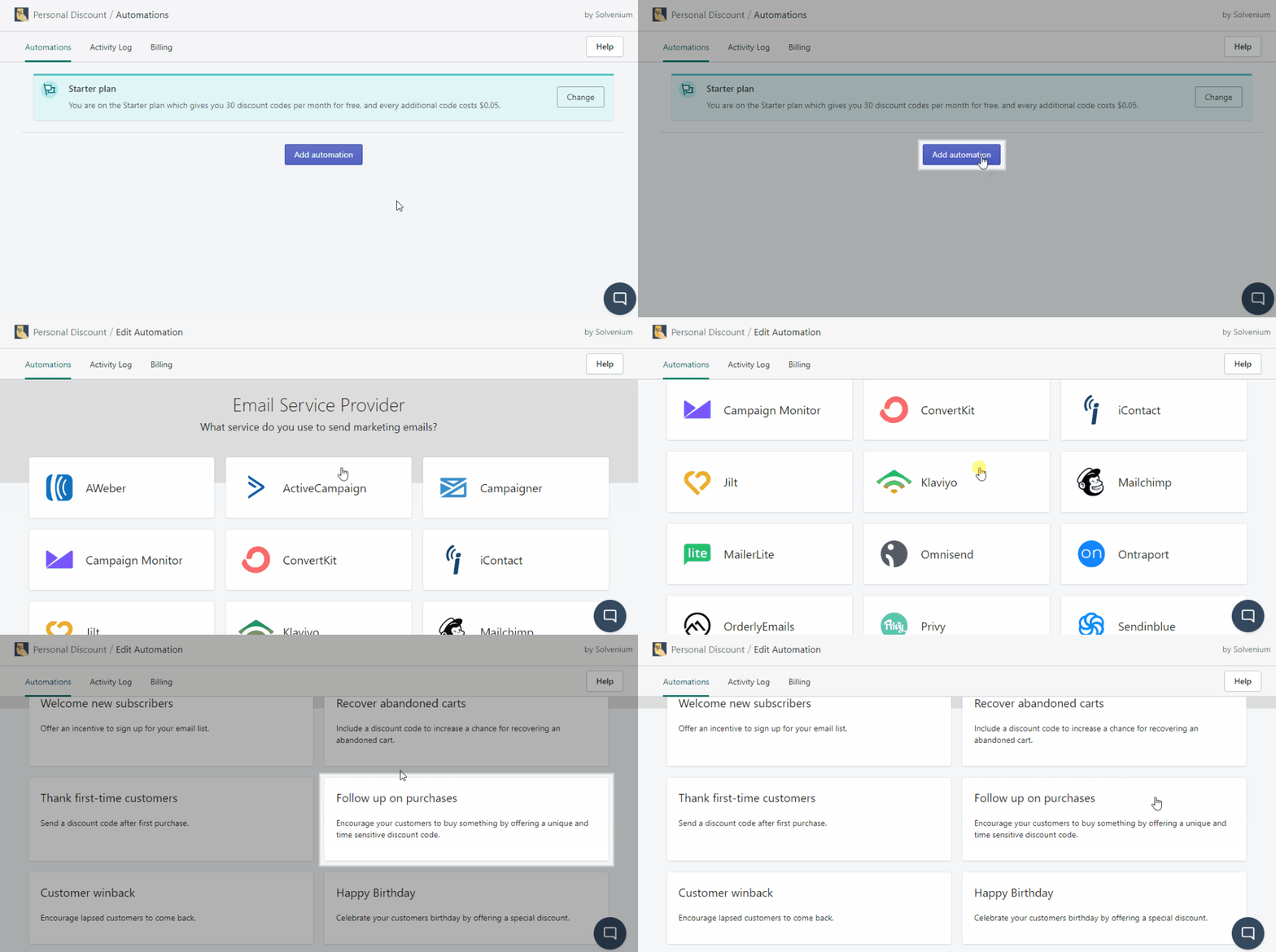
Let's start with creating a new automation with our app. Open your Shopify dashboard > Apps > Discounteo. Then pick Klaviyo as your Email Service Provider, and the Campaign type is Follow up on purchases.

Create a post-purchase Discounteo automation with Klaviyo
Next, set details of your automation. Here is a useful guide on how to configure a discount which describes parameters that you can control.

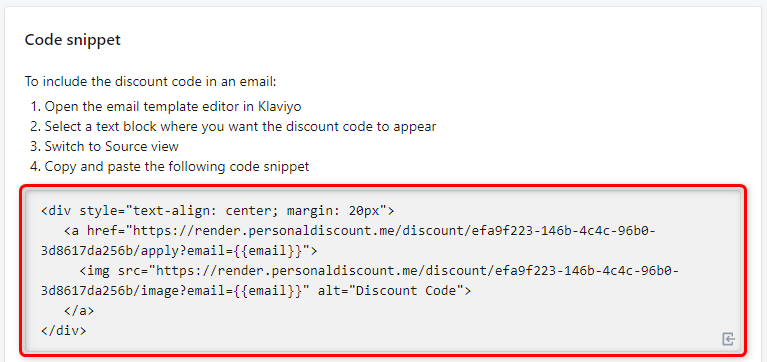
If you have set everything up, save your automation and copy the code snippet to the clipboard.

Copy the code snippet from Discounteo
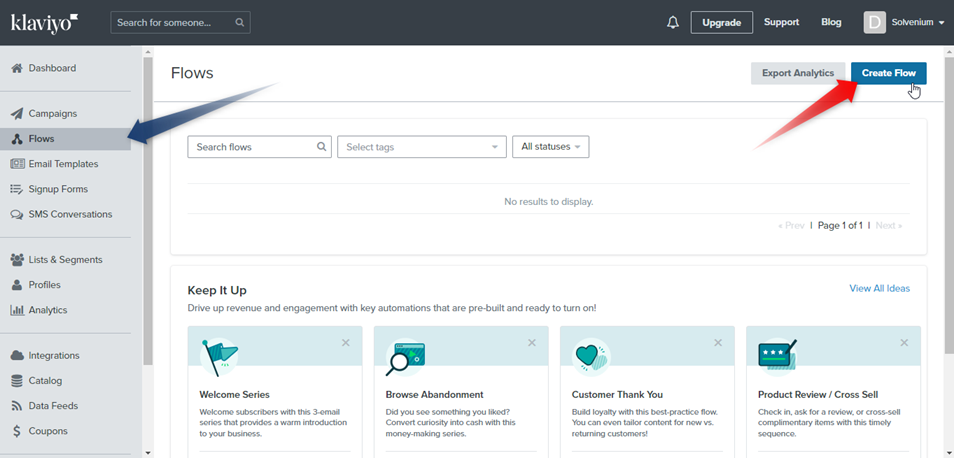

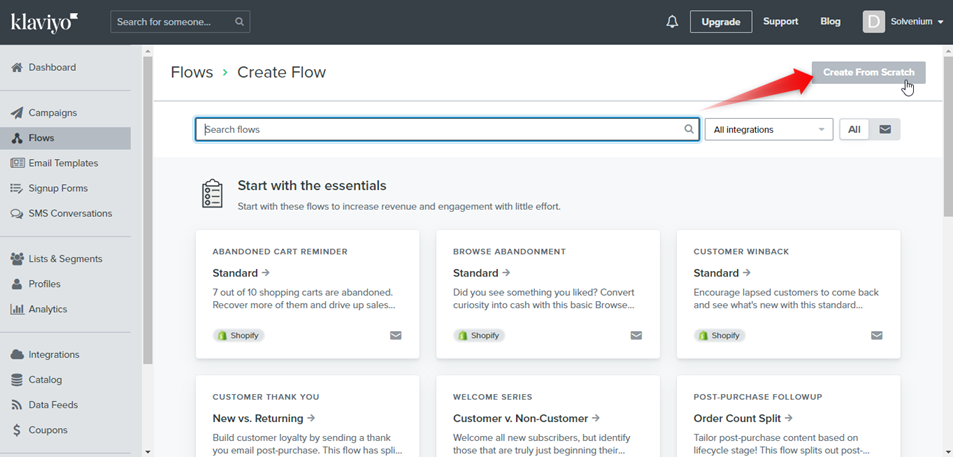
In the next step, switch over to the Klaviyo dashboard > Flows > Create Flow.

Create a Klaviyo flow

We will build our automation from scratch.

Build a Klaviyo automation from scratch
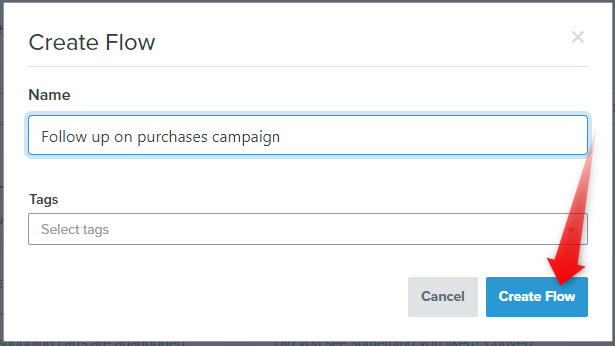

Enter the flow name.

Provide a name for your Klaviyo flow

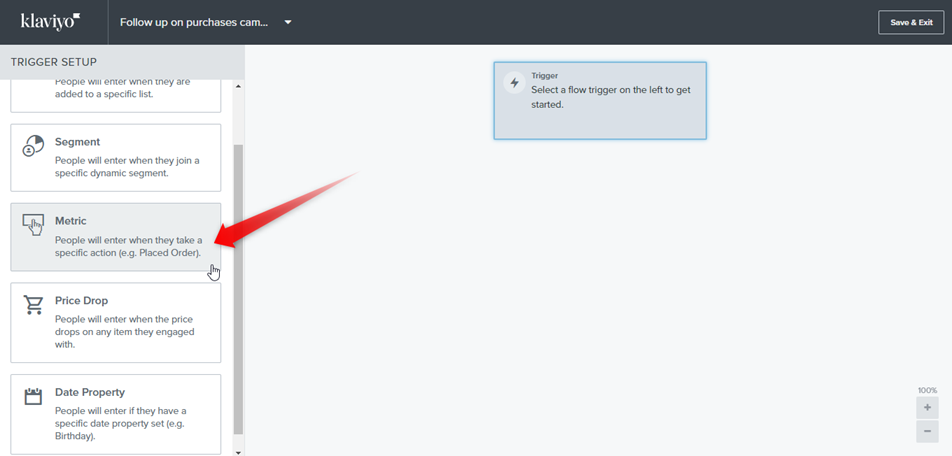
Now we will create our automation structure. Let's start with a trigger. We want to send a message when a customer placed an order, so click Metric.

Select a trigger for your Klaviyo flow
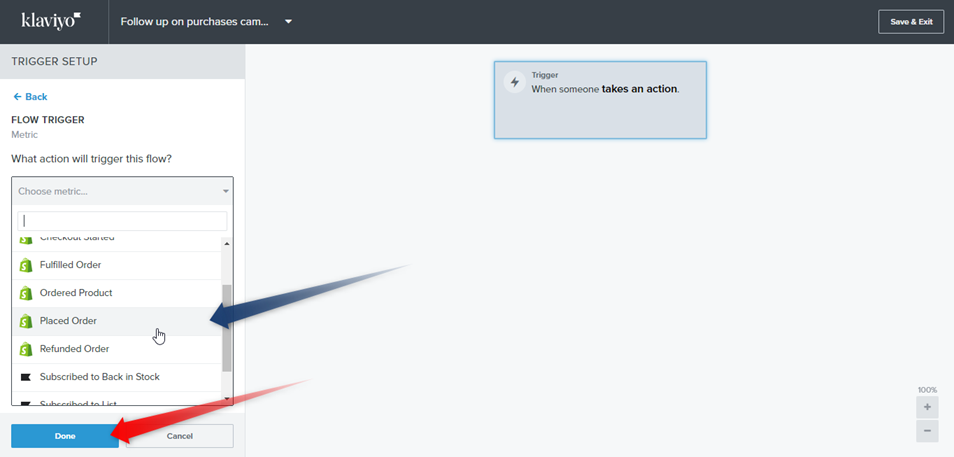

And select Placed Order from the dropped-down menu. Then click Done. You can also set trigger filters or flow filters to restrict automation to only certain people.

Set the "Placed Order" trigger in your Klaviyo flow
"Place Order" trigger in a Klaviyo flow
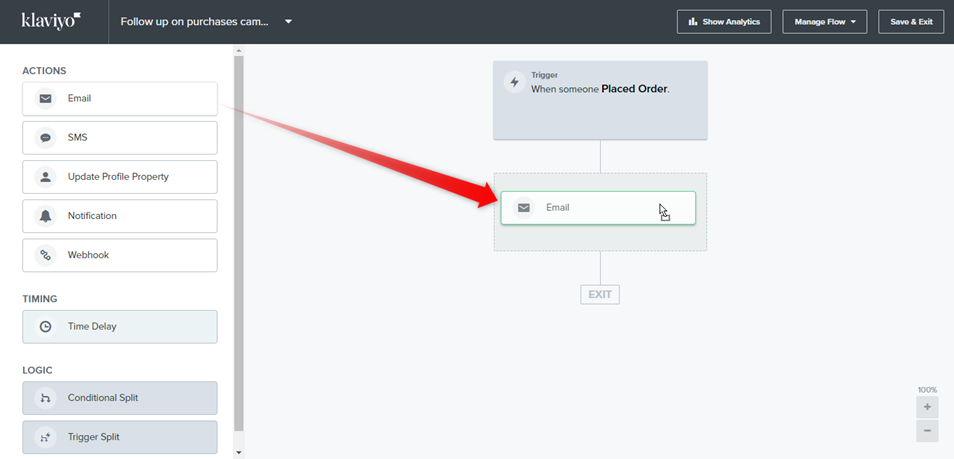
Now drag and drop an action that will be taken after placing an order. We want to send an email. You can also set a time delay.

Insert a “Send Email” action into your Klaviyo flow
Insert the "Send Email" action into your Klaviyo flow
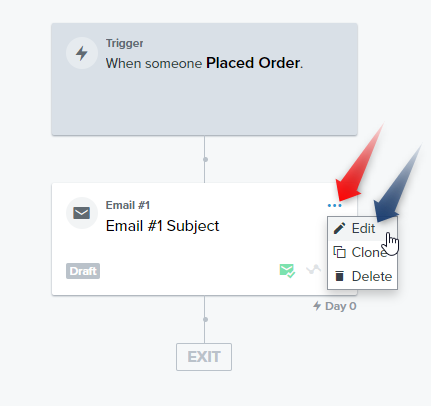
In the next step, design your message with a discount code.

Edit the email in your Klaviyo flow
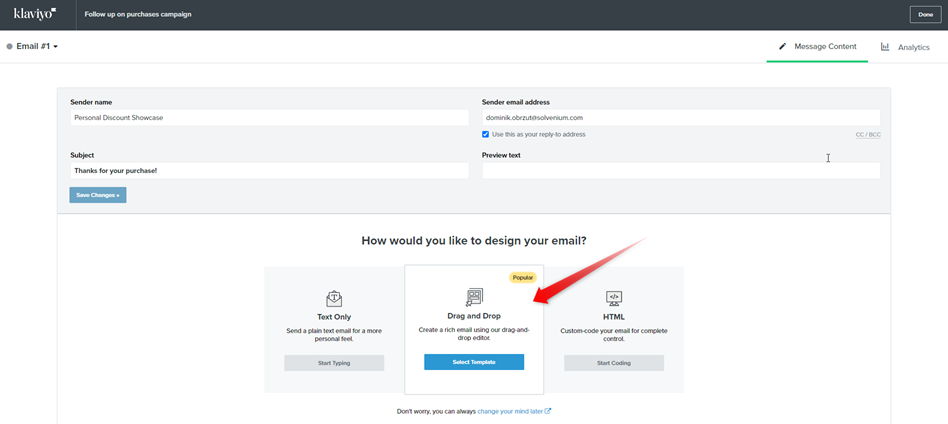
Here you can set the details of your email like the mail sender or subject and select your message designing way.

Select a way to design the email for your Klaviyo flow
Select a way to design an email for your Klaviyo workflow
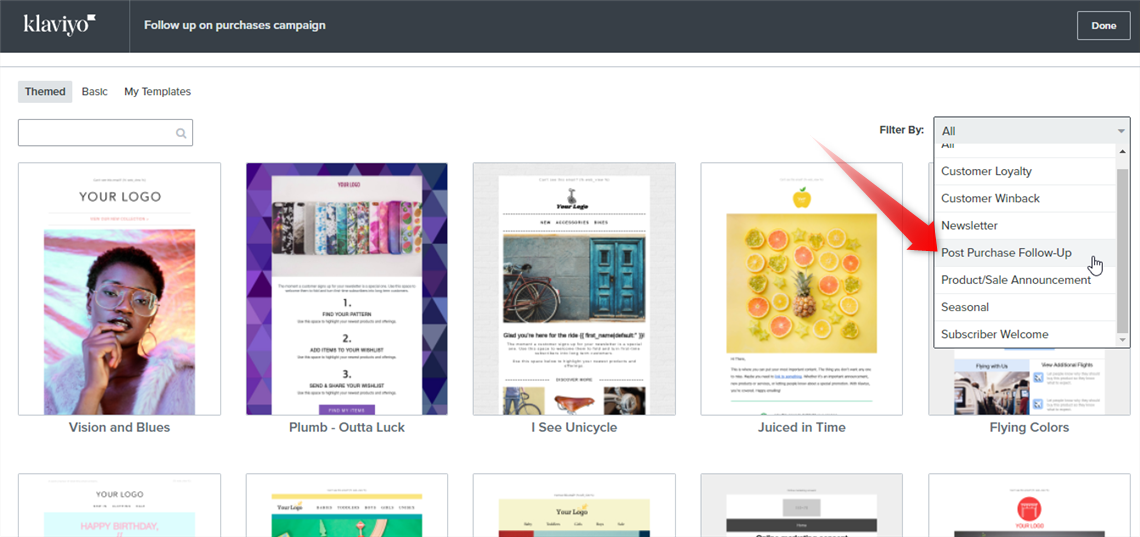
You can choose one of the pre-built templates or create your own.

Email templates for Klaviyo automation
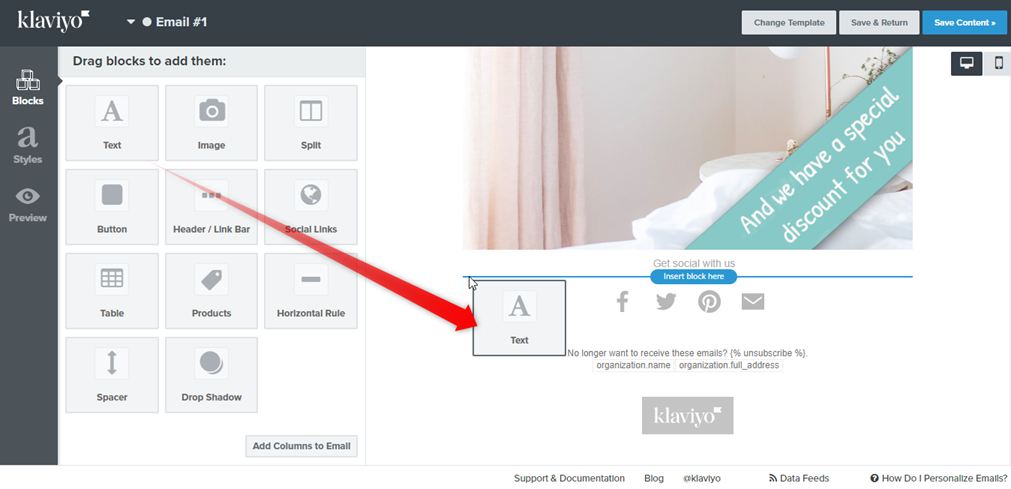

Now drag and drop a text element that will contain a code snippet. You can also use the existing element from your template.

Insert a text element into a Klaviyo email template
Insert a text element into your Klaviyo email template
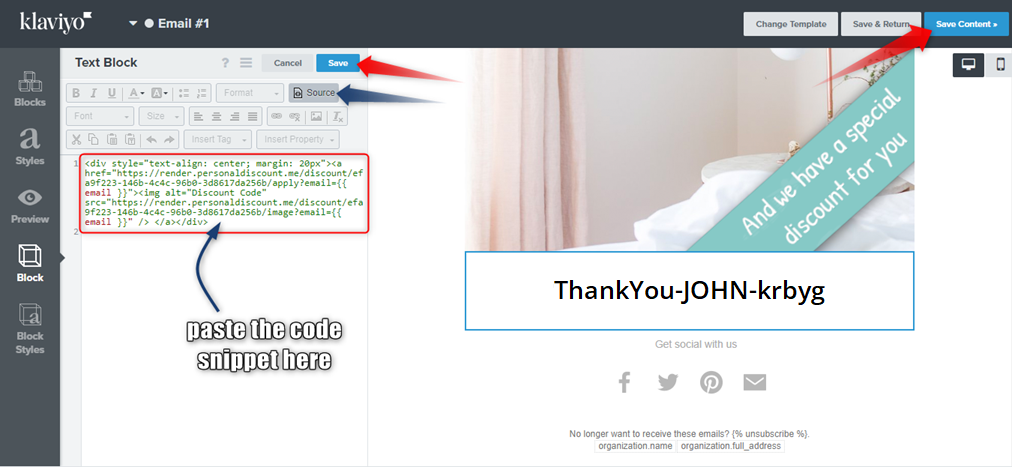
Edit your text element. Switch out to the Source view, paste the code snippet from Discounteo and Save element changes. If your entire template is ready, Save Content.

Paste the code snippet from Discounteo
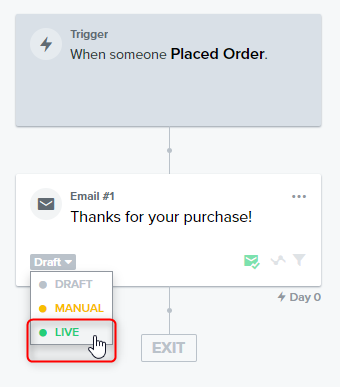

It's high time for activating your automation. Change the email status from 'Draft' to 'Live'. Then Save & Exit.

Activate your Klaviyo automation

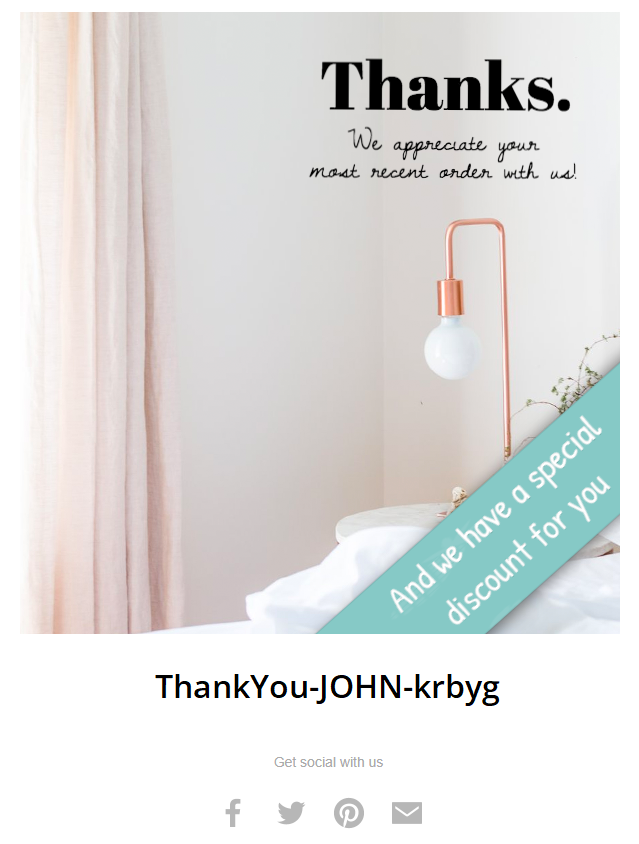
Now your customers will receive a message with a discount code when they place an order.

Klaviyo email with a Discounteo discount code

Last updated