> For the complete documentation index, see [llms.txt](https://docs.personaldiscount.io/llms.txt). Markdown versions of documentation pages are available by appending `.md` to page URLs; this page is available as [Markdown](https://docs.personaldiscount.io/discounteo-for-shopify/integrate-discounteo-with-your-email-service-provider/klaviyo/how-to-create-a-happy-birthday-campaign-using-klaviyo.md).

# How to create a Happy Birthday campaign using Klaviyo

It's nice when others remember the days that are important to us. In this guide, we show how to build relationships with your Shopify customers and give them special discount codes for their birthday.

We will use Discounteo and Klaviyo.

Start in the **Shopify admin panel** > **Apps** > **Discounteo** and click the **Add automation** button. Then select **Klaviyo** as your **Email Service Provider** and **Happy Birthday** as your **campaign type**.

<figure><img src="https://3731721370-files.gitbook.io/~/files/v0/b/gitbook-x-prod.appspot.com/o/spaces%2F-LZdVZovthV0SPlgxS6Y%2Fuploads%2FSS9eeI6tenEEBSUgY1SQ%2Fklaviyo-shopify-personal-discount-code-create-happy-birthday-campaign-animated.gif?alt=media&amp;token=f4cfd99e-0be8-4d5d-8302-2d62cf44da9f" alt="Create Klaviyo happy birthday automation with Discounteo for Shopify annotated"><figcaption><p>Add a Discounteo automation</p></figcaption></figure>

You will be asked to specify your automation details in the next step. Learn more from the article describing [how to configure an automated discount](/discounteo-for-shopify/configure-discount.md).

Copy the code snippet to the clipboard when you have finished setting up the automation.

<figure><img src="https://3731721370-files.gitbook.io/~/files/v0/b/gitbook-x-prod.appspot.com/o/spaces%2F-LZdVZovthV0SPlgxS6Y%2Fuploads%2F1rb8VI2hhLJJiWtl2msj%2Fklayivo-shopify-personal-discount-code-happy-birthday-campaign-snippet.png?alt=media&amp;token=1ae24c87-814e-4e04-96a6-6a9a666c9942" alt="Copy the Discounteo code snippet for Klaviyo"><figcaption><p>Discounteo code snippet</p></figcaption></figure>

Switch over to the Klaviyo dashboard. We will build happy birthday automation. Navigate to the **Flows** section and click **Create Flow**.

<figure><img src="https://3731721370-files.gitbook.io/~/files/v0/b/gitbook-x-prod.appspot.com/o/spaces%2F-LZdVZovthV0SPlgxS6Y%2Fuploads%2Fb3Gz77zMy8XguhMhe3fG%2Fklaviyo-shopify-personal-discount-code-happy-birthday-campaign-create-flow.png?alt=media&amp;token=1f025a8c-458c-49fc-ab10-c6cea1b1d5db" alt="Create a Klaviyo flow"><figcaption><p>Create a flow in Klaviyo</p></figcaption></figure>

We will **Create From Scratch**.

<figure><img src="https://3731721370-files.gitbook.io/~/files/v0/b/gitbook-x-prod.appspot.com/o/spaces%2F-LZdVZovthV0SPlgxS6Y%2Fuploads%2FoSfWeO8ib0yEpjkrc5dv%2Fklaviyo-shopify-happy-birthday-campaign-personal-discount-code-create-automation.png?alt=media&amp;token=777368df-ea74-473e-bebf-c680086bd735" alt="How to create a flow from scratch in Klaviyo"><figcaption><p>Create a flow from scratch in Klaviyo</p></figcaption></figure>

Now, enter the name of your flow, for example, the Happy Birthday campaign.

<figure><img src="https://3731721370-files.gitbook.io/~/files/v0/b/gitbook-x-prod.appspot.com/o/spaces%2F-LZdVZovthV0SPlgxS6Y%2Fuploads%2F2Gz8r6EHN4Id6ZVUcNWS%2Fklaviyo-create-happy-birthday-campaign-shopify.png?alt=media&amp;token=3a0ec99e-ee03-47ed-92e5-d71ddae1bd3d" alt="Name your Happy Birthday campaign in Klaviyo"><figcaption><p>Name your Klaviyo automation</p></figcaption></figure>

Now, we need to set the trigger. Select **Date Property** from the trigger types list. Then from the dropped-down menu pick the date property that will trigger this flow. In this case, it is a **Birthday**. In the next window, you can specify trigger setup, for example, if a message should be sent before or on a person's birthday. Click **Done** to save this setting and **Done** again to save the trigger. You can decide if it should be a one-year or annual campaign. In the second case check the **Yearly** option. Discounteo will generate a new birthday discount code each year.

<figure><img src="https://3731721370-files.gitbook.io/~/files/v0/b/gitbook-x-prod.appspot.com/o/spaces%2F-LZdVZovthV0SPlgxS6Y%2Fuploads%2FkNCrMBZ7nWmI8PFkfxjb%2Fpersonal-discount-code-shopify-klaviyo-happy-birthday-flow-settings.gif?alt=media&amp;token=461fa5aa-08c2-4542-ae61-966534159f7e" alt="Set the trigger for a Klaviyo Happy Birthday campaign"><figcaption><p>Set the trigger for the "Happy Birthday" campaign in Klaviyo</p></figcaption></figure>

We would like to send an email on a customer's birthday, so drag and drop the **Email** box to your automation.

<figure><img src="https://3731721370-files.gitbook.io/~/files/v0/b/gitbook-x-prod.appspot.com/o/spaces%2F-LZdVZovthV0SPlgxS6Y%2Fuploads%2FxAjT5mIy5s1HVEY1Rhme%2Fpersonal-discount-code-shopify-klaviyo-happy-birthday-flow-add-email.gif?alt=media&amp;token=256dfafa-e9fd-44a7-ae90-2dde4eec2c6d" alt="How to add an email to a Klaviyo Happy Birthday campaign"><figcaption><p>Add an email-sending action to your Klaviyo flow</p></figcaption></figure>

Now we will **Edit** a birthday message.

<figure><img src="https://3731721370-files.gitbook.io/~/files/v0/b/gitbook-x-prod.appspot.com/o/spaces%2F-LZdVZovthV0SPlgxS6Y%2Fuploads%2FWu9HCk5nKSMDqBHGFnTV%2Fpersonal-discount-code-shopify-klaviyo-happy-birthday-flow-edit-email.gif?alt=media&amp;token=eb4b3e75-2e24-4aee-8a33-84b64f5d9174" alt="How to edit a birthday message in Klaviyo"><figcaption><p>Edit the birthday message in Klaviyo</p></figcaption></figure>

In the next step, you can specify some details of your email, like the subject or sender name.

<figure><img src="https://3731721370-files.gitbook.io/~/files/v0/b/gitbook-x-prod.appspot.com/o/spaces%2F-LZdVZovthV0SPlgxS6Y%2Fuploads%2FQh35nkmxKd9v72Os1LPA%2Fklaviyo-shopify-happy-birthday-campaing-email-subject-sender-name.png?alt=media&amp;token=b70c3e31-3816-4b36-be29-34656542eaac" alt="Specify the details of your Klaviyo Happy Birthday email"><figcaption><p>Specify the details of your Klaviyo "Happy Birthday" email</p></figcaption></figure>

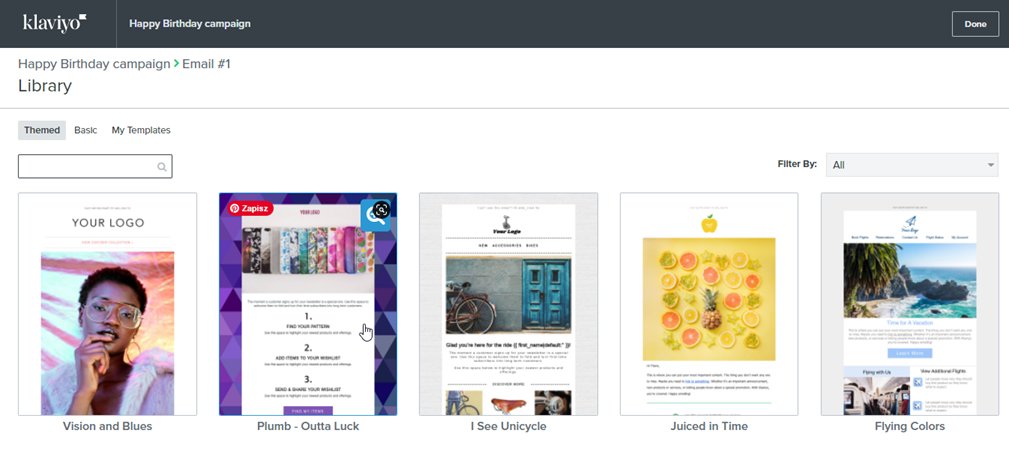
You can select an email template from the Klaviyo library or create your own.

<figure><img src="https://3731721370-files.gitbook.io/~/files/v0/b/gitbook-x-prod.appspot.com/o/spaces%2F-LZdVZovthV0SPlgxS6Y%2Fuploads%2FlZDm7maY2TZUGODVXIXF%2Fklaviyo-email-templates-library.png?alt=media&amp;token=8fe54ade-3cf9-4381-bafa-70f45d3d6c4e" alt="Klaviyo email templates library"><figcaption><p>Klaviyo email templates library</p></figcaption></figure>

It's time to include a discount code in your email template. Drag and drop a **Text** element to your template. Then delete the default content from it. Next, switch out to the **Source** view and paste the **code snippet** from Discounteo. **Save** the element and **Save Content**.

<figure><img src="https://3731721370-files.gitbook.io/~/files/v0/b/gitbook-x-prod.appspot.com/o/spaces%2F-LZdVZovthV0SPlgxS6Y%2Fuploads%2FL7i13qF7ZQ2wpk3puvSE%2Fpersonal-discount-code-shopify-klaviyo-happy-birthday-flow-personal-discount-code-snippet.gif?alt=media&amp;token=7f60f737-38f4-4303-84ab-b2ece811a321" alt="Add a text element to a Klaviyo email template and paste the Discounteo code snippet"><figcaption><p>Add a text element to your Klaviyo email template and paste the Discounteo code snippet</p></figcaption></figure>

Now you can enable your automation. Change your email box status from **'Draft'** to **'Live'**. Then **Save & Exit**.

<figure><img src="https://3731721370-files.gitbook.io/~/files/v0/b/gitbook-x-prod.appspot.com/o/spaces%2F-LZdVZovthV0SPlgxS6Y%2Fuploads%2Fp4MVcIKpdYsJnm0eNOoP%2Fpersonal-discount-code-shopify-klaviyo-happy-birthday-flow-personal-discount-code-enable-flow.gif?alt=media&amp;token=01aee272-4539-49e6-8edf-b939927f1185" alt="How to enable a Klaviyo flow"><figcaption><p>How to enable a Klaviyo flow</p></figcaption></figure>

Next, we need to prepare a form where the customer can enter their date of birth. One of the solutions is to create a pop-up.

<figure><img src="https://3731721370-files.gitbook.io/~/files/v0/b/gitbook-x-prod.appspot.com/o/spaces%2F-LZdVZovthV0SPlgxS6Y%2Fuploads%2FHqmWGiBa2IZLjZjUtZ9y%2Fklaviyo-happy-birthday-sign-up-form-know-your-customer.png?alt=media&amp;token=5ba9c6fc-23a0-4990-ac4d-e05981aff27f" alt="How to create a Klaviyo birthday date pop-up"><figcaption><p>Create a Klaviyo birthday date pop-up</p></figcaption></figure>

Select the **Email subscriber list**.

<figure><img src="https://3731721370-files.gitbook.io/~/files/v0/b/gitbook-x-prod.appspot.com/o/spaces%2F-LZdVZovthV0SPlgxS6Y%2Fuploads%2FUizIKHeci2vfTpTzrE6e%2Fklaviyo-happy-birthday-sign-up-choose-your-list.png?alt=media&amp;token=5e7b6c15-36d5-4f42-8277-b12ec204a9a3" alt="Klaviyo birthday pop-up subscribers list"><figcaption><p>Klaviyo birthday pop-up subscribers list</p></figcaption></figure>

Now, go to the second step of your pop-up. Here, for example, you can change the date format. Notice that Klaviyo has defined the date formats required for the automation to work correctly. It is MM/DD/YYYY or YYYY-MM-DD format. For more information, see the Klaviyo article [Create birthday emails for subscribers (with best practices)](https://www.klaviyo.com/blog/why-to-send-birthday-emails-to-your-subscribers).

<figure><img src="https://3731721370-files.gitbook.io/~/files/v0/b/gitbook-x-prod.appspot.com/o/spaces%2F-LZdVZovthV0SPlgxS6Y%2Fuploads%2FMAvDbZRf1wRXmpo05InV%2Fklaviyo-happy-birthday-pop-up-date-format.png?alt=media&amp;token=858d778e-253d-4f98-9ad1-9a7d75e99e59" alt="Change the birthday date format in a Klaviyo pop-up"><figcaption><p>Birthday date format in a Klaviyo pop-up</p></figcaption></figure>

When your pop-up is finished, you can publish it.&#x20;

<figure><img src="https://3731721370-files.gitbook.io/~/files/v0/b/gitbook-x-prod.appspot.com/o/spaces%2F-LZdVZovthV0SPlgxS6Y%2Fuploads%2FOkQC2WsSX58dtV4odqij%2Fklaviyo-publish-birtday-pop-up-form.png?alt=media&amp;token=68041533-6ad6-4fe5-9e77-61ad44c47c26" alt="How to publish a pop-up in Klaviyo"><figcaption><p>Publish a pop-up in Klaviyo</p></figcaption></figure>

To publish your pop-up, there is also a confirmation in Shopify needed. When you click **Publish Form and Go To Shopify**, Klaviyo will redirect you to the appropriate subpage of the Shopify admin panel.

<figure><img src="https://3731721370-files.gitbook.io/~/files/v0/b/gitbook-x-prod.appspot.com/o/spaces%2F-LZdVZovthV0SPlgxS6Y%2Fuploads%2F2ujVFwXDPzmFz1lNPMLU%2Fklaviyo-publish-birthday-pop-up-shopify-settings.png?alt=media&amp;token=0dc43abc-ed59-48fb-9f14-9d9f835c70f9" alt="How to enable a Klaviyo pop-up in a Shopify theme"><figcaption><p>Enable the Klaviyo pop-up in your Shopify store template</p></figcaption></figure>

Now your customers can get a discount code as a birthday gift.

<figure><img src="https://3731721370-files.gitbook.io/~/files/v0/b/gitbook-x-prod.appspot.com/o/spaces%2F-LZdVZovthV0SPlgxS6Y%2Fuploads%2FSZDxK07oeI6JZZQS4SzA%2Fhappy-birthday-shopify-klaviyo-personal-discount-code.png?alt=media&amp;token=26b4c780-fcf8-451f-a41a-45701129ed50" alt="Happy Birthday email for Shopify customers using Klaviyo"><figcaption><p>Klaviyo "Happy Birthday" email with a discount code</p></figcaption></figure>